Work with colors
Before using a drawing tool, you need to select a drawing color. You can define 2 colors:
The Foreground Color - This color will be assigned to the left mouse button while drawing.
The Background Color - This color will be assigned to the right mouse button while drawing.
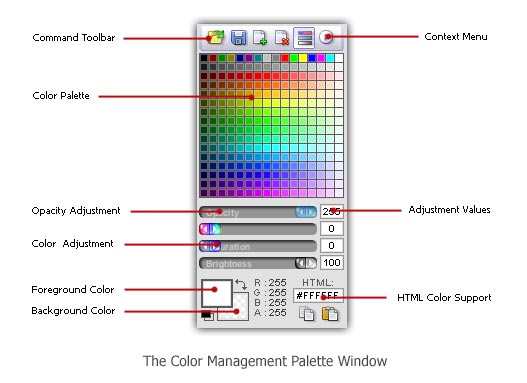
You can define and assign colors using the color palette docking window:
 The Color Palette contents changes depending on the color mode of the actual icon image format (RGB/A, 256, 16, Mono).
Show/Hide the color palette window
1. Choose View/Colors or CTRL+F11
Assigning Foreground / Background colors
1. Select foreground or background color by clicking the associated area (see above). The selected area is marked with a thicker and darker border.
2. Using the mouse, click in the color palette. The associated color is assigned.
3. If you're in RGB/A mode, you can adjust the opacity.
Adjusting Foreground / Background colors
1. Select foreground or background color by clicking the associated area (see above). The selected area is marked with a thicker and darker border.
2. Using the mouse, adjust the color using the color adjustment sliders.
 In RGB/A mode, adjusting the color using the above method doesn't change the color in the Color Palette. In 256 color mode, the color is changed accordingly.
Using RGB or HSB color modes
1. In the command toolbar, click the command  or in the Context Menu select RGB/HSB sliders.
The color mode and the sliders are changed accordingly. RGB and HSB modes permit to specify colors using different methods:
RGB - Permits to specify colors using Red, Green, Blue components
HSB - Permits to specify colors using Hue, Saturation, Brightness components
Specifying a transparent color
1. Select foreground or background color by clicking the associated area (see above). The selected area is marked with a thicker and darker border.
2. In RGB/A mode: Adjust the opacity slider to 0.
or
2. In 256, 16 or mono mode: Click on the transparent button (just below the color palette).
Swap Foreground and Background colors
1. Click the swap button  in the color management window.