 ). A standard Windows dialog box opens to let you choose the video movie files you want to add. Browse your disks, select the files and click Open.
Add/remove video movies in the playlist
A video screensaver can play several movies in sequence. You just have to add them in the project playlist. You can also change the playlist sequence order.
Add video movies to the playlist
1. Activate the Screensaver Document window.
2. Select the Playlist dialog box (click the tab if necessary), click on the Add button (). A standard Windows dialog box opens to let you choose the video movie files you want to add. Browse your disks, select the files and click Open.
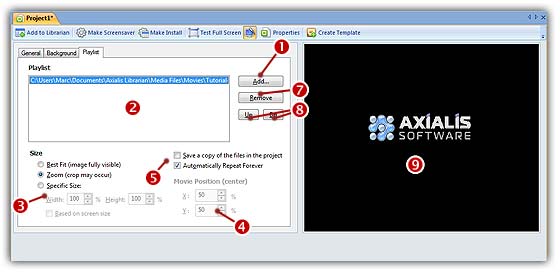
3. The files are added in the playlist ( ). The selected video file is displayed in the Preview window (
 ).
).
4. If the Save a copy of the file in the Project option is checked (), the video file will be stored in the Screensaver project (not recommended for large files).
If you check this option, the animation file will be included into the Screensaver file when saved. This option is useful because the video file doesn't need to be present on your hard disk the next time you'll open the SSP document. The drawback is that the SSP file is larger and space consuming.
If you uncheck this option, the animation file will NOT be included into the Screensaver file when saved. The SSP file is smaller but the video file must be present on your hard disk (at the right location) or you'll get an error the next time you'll open the SSP document.
5. In the Size group ( ):
):
If you check Best Fit, the Flash movie will be adjusted to the full screen size preserving its original aspect ratio. Using this option, the movie is fully visible. The background may be visible on some screens with different aspect ratios.
If you check Zoom, the Flash movie will be adjusted to the full screen size preserving its original aspect ratio. Using this option, the movie may be cropped on some screen with different aspect rations. The background is never visible.
If you check Specific Size, the Flash movie is displayed at a size based on its original dimensions. The aspect ratio is preserved. In the field below specify the display factor in percents. If you check this option, you can also specify the location of the Flash movie on screen (see below). If you check Based on screen size, the display size is based on the screen size in percent (recommended less that 100%).
6. In the Movie Position group ( enabled if you have chosen "Specific Size"):
In the X area, enter here the X coordinate of position of the animation windows on screen (0 means the left side of the screen). This value indicates the position of the center of the animation window.
In the Y area, Enter here the Y coordinate of position of the animation windows on screen (0 means the top of the screen). This value indicates the position of the center of the animation window.
7. Click the Automatically Repeat Forever option () if you want to play the playlist in loop. If this option is unchecked, the playlist is played once.
Add files using Drag & Drop
1. Go to the librarian, expand Media Files and select the Movies folder.
2. Select the files then drag and drop to the Screensaver document window.
3. The files are added in the playlist ( ). The selected video file is displayed in the Preview window ().
4. Set the playback options as above.
Remove files from the playlist
1. Activate the Screensaver Document window.
2. Select the Playlist dialog box (click the tab if necessary), the video files appear in the playlist ().
3. Select the video files you want to remove.
TIP: You can select several files by clicking on files while pressing on the CTRL key. To select a range of files, use the SHIFT key.
4. Click on the Remove button ( ). You're prompted to confirm the deletion. Click YES.
Change playlist order
1. Activate the Screensaver Document window.
2. Select the Playlist dialog box (click the tab if necessary), the video files appear in the playlist () as shown above.
3. Select the video file you want to move in the playlist.
4. Click on the Up or Down button ( ) to move the file.