Create Flash-based Screensaver project
To create a Screensaver, you must create a Project first (.SSP file). Only this file can be saved/reloaded/modified in the built-in editor window. Then to create a Windows compatible Screensaver (.SCR file) you have just to compile this project. The Screensaver (.SCR) that has been created, can't be modified or decompiled.
Create a Flash screensaver project
1. Choose File Menu/New or click the New button in the Ribbon toolbar, a dialog box opens. Select the "Flash-based Screensaver" type in the list and click Next.
2. Click on the Next Button. The "Create a New Screensaver Project" dialog box opens. You can specify Screensaver and Author information in the areas: Title, Description, Name and Copyright.
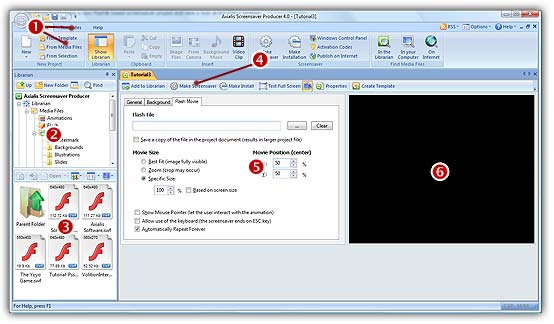
3. Click on the Next button. The application creates a new project window (see below):
4. In the Application window ( ) you see the File Menu and the Ribbon Toolbar. They contain the main commands.
5. In the Librarian ( ) you can select the folder that contains the media files (images, animations, music, sounds) that you'll use in your project (
 ).
).
6. The Project document window is placed in the working area ( ). The application is multi-document enabled. It means that you can create or open several documents in the working area of the application. A local toolbar is located in the document window. If you click on a button in this toolbar (), it acts on the selected item in the document window. This toolbar cannot be customized.
7. The Document window is divided in two parts. In the left side ( ) are located the edit dialog boxes that you'll use to set project and Flash movie properties. It is composed of 3 windows that you can activate by clicking on the associated tabs: General, Background and Flash Movie. On the right side (
 ), a preview window is available.
 Related Topics
 Compile a Screensaver (SCR file)
Compile an installable Screensaver (EXE file)