 ) you see the Ribbon toolbar.
Lesson 2.1 - Creating the new project
In this lesson we'll create a new slideshow based screensaver project and take a look at the editor window.
Create the project
1. Choose File Menu/New or click the New button in the Ribbon toolbar, a dialog box opens. Select the "Slideshow Based Screensaver" type in the list and click Next.
2. A 2nd dialog box opens which permits adding new slide images. For this tutorial we won't add any initial slides, so click Next.
3. Specify the Screensaver Title: "Tutorial2". Also specify your own Description, Author Name, Copyright information and click Next.
A quick tour of the slideshow screensaver project editor window
4. A new project window opens. In the Application window () you see the Ribbon toolbar.
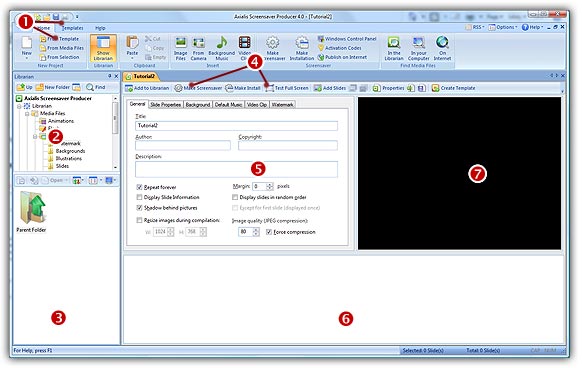
5. In the Librarian ( ) you can select the folder that contains the media files (images, animations, music, sounds) that you'll use in your project (
 ).
).
6. The Project document window is named "Tutorial2" ( ). The application is multi-document enabled. It means that you can create or open several documents in the working area of the application. A local toolbar is located in the document window. If you click on a button in this toolbar (), it acts on the selected item in the document window.
7. The Document window is divided in three parts. In the upper-left pane ( ) are located the edit dialog boxes that you'll use to set project and slide properties. It is composed of 5 windows that you can activate by clicking on the associated tabs: General, Slide Properties, Background, Default Music and Video Clip. At the bottom of the window (
 ) you see the list of slides included in the project (actually no slide). Slides you'll add in the project will be added in this list. Slide order can be rearranged by drag & drop and multi-selection is possible. Finally, in the upper-right pane (
 ), a preview window is available.
Lesson 2 - Defining the background