Lesson 3.4 - Specifying display settings
In this lesson, we'll see how to adjust the Flash display settings. Finally, we'll test the screensaver fullscreen.
Change display settings
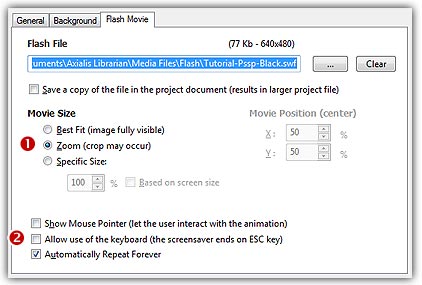
1. Select the Flash Movie tab if necessary. The associated dialog box appears (see below).
2. In the Movie Size group, select the Zoom option ( ). This option displays the flash movie using the whole available screen area. The aspect ratio is kept but the background is never visible. As a result, the image may be cropped on some screens such as 16:9 or 16:10.
3. The Show Mouse Pointer ( ) option permits creating interactive screensavers. It means that the user will see the mouse pointer and will be able to move the mouse and click in the Flash movie without interrupting the screensaver. Do not check this option.
4. The Allow Use Of Keyboard () option also creates an interactive screensaver but using the keyboard. In such a case, only the ESC key ends the screensaver. Do not check this option.
5. The Automatically Repeat Forever () option plays the Flash movie in loop. For this tutorial, we need to check this option.
6. We can take a look at the result full screen. Press F11 or click the Test Full Screen button in the toolbar. The screensaver is executed full screen. Press a key or move the mouse to end the full screen test.