Batch create images with transparency from cursors
This article provides information on the following topics:
Creating images with transparency from cursors can be very useful to create image objects or converting cursors to icons. A feature in CursorWorkshop permits to creating images from several cursors in one operation. This is what is called a "Batch Procedure".
1. Open a new Browser window. Choose File/New/File Browser...
2. When the window is opened, select the folder which contains the Source Files using the tree in the left pane.
3. The source cursor files appears (with preview) in the right pane. Select the cursors you wish to convert to images. You can use Shift/Ctrl + Mouse to select several cursors. Use Ctrl+A to select all. Use +/- to select/unselect by specifying filters.
 You can extract images from static or animated cursors. For animated cursors, the generated image will be a filmstrip.
4. Choose File Browser/Batch Create Images (PSD, PNG, BMP, GIF, JP2) from Cursors or Ctrl+Shift+X.
5. The dialog
box Batch Create Images From Cursors
opens (see below). In the Cursor Format
to Extract group ( ), choose the image format you
wish to extract from the cursors. You can choose only one image format.
If this exact format does not exists in a cursor, the nearest format is
chosen.
), choose the image format you
wish to extract from the cursors. You can choose only one image format.
If this exact format does not exists in a cursor, the nearest format is
chosen.
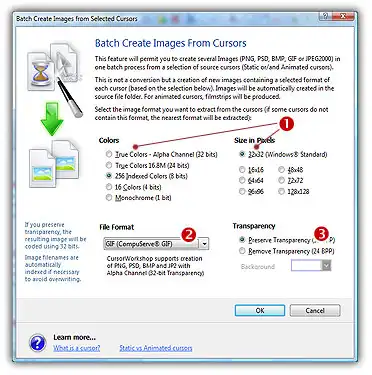
6.
In the Image File Format group
( ), select the file format you wish to use for the images
to create.
), select the file format you wish to use for the images
to create.
7.
In the Transparency group ( ), choose if you wish to create transparent or opaque images.
If you choose to preserve transparency, the images will be automatically
converted to 32BPP with alpha channel (even if the chosen cursor format
is 256 or less colors). If you choose to remove transparency, the images
will be generated using 24BPP (no alpha channel). In such a case, you
must specify a background color (to fill the transparent areas with this
color).
), choose if you wish to create transparent or opaque images.
If you choose to preserve transparency, the images will be automatically
converted to 32BPP with alpha channel (even if the chosen cursor format
is 256 or less colors). If you choose to remove transparency, the images
will be generated using 24BPP (no alpha channel). In such a case, you
must specify a background color (to fill the transparent areas with this
color).
8. When done, click OK. The batch operation starts immediately, the hourglass mouse pointer is displayed during the creation. When done the new Images are added to the folder contents.
The created images have the same
filename as the original document with .PNG,
.PSD ot .BMP appended. A smart system has been added to index the
files if necessary to avoid overwriting. If this exact chosen format does not exists in a cursor,
the nearest format is chosen for extraction.