Create a static cursor from an image
In relation to Axialis CursorWorkshop, this article offers information on the following topics:
1. Choose "File/Open", browse your folders and select your file (Windows standard dialog box).
or
Choose "File/New/File Browser" or press Ctrl+Alt+O. A built-in Axialis File Browser window opens. Browse your disks, see the thumbnail preview and double-click the image file you wish to open.
or
In the Recently Used zone (in the main toolbar), type the full pathname of the image file you wish to open then hit Enter.
2. For example, open the file located in the librarian: "Cursors\Tutorials\Arrow Add.png". The image file opens in a document window.
Note
Axialis CursorWorkshop will convert images to 32 bpp with transparency when possible. This is much more convenient to create cursors. The following image formats can include transparency: Photoshop PSD, PNG, RGB, GIF, JPEG 2000 and WMF.
Creating a static cursor from this image
3. If your image is opaque, you can create transparent areas. Using the following tutorial, you can easily transform the white background to transparency: Add Transparency to an Opaque Image.
4. If necessary, select the portion of image: Use the selection tool (upper-left button of the tool palette) and select the portion of image you whish to use (do not cut the shadow if there is one around the object). When done, an animated dashed rectangle has been created.
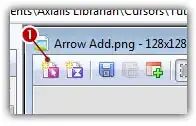
5. When the selection is done, choose Image/Create New Cursor from Selection or press "I" or click the first command button in the local toolbar 1:
6. The dialog box New Cursor From Image opens (see below). In the Project Name group 1, enter the cursor project name. Do not specify any extension.
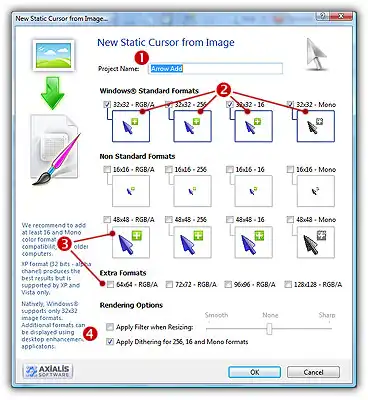
7. In the Image Formats group, select the image formats you whish to add in the cursor (2 3) and unselect the unwanted images. Just click on the image preview to select/unselect. To know more about the desired Windows image format, see What is a Cursor topic.
8. You can also apply a smooth/sharp filter to the final images 4.
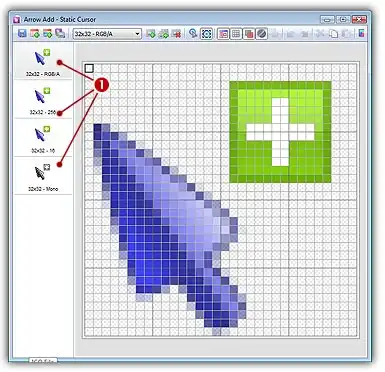
9. When done, click OK. The cursor is automatically created with the various image formats you've selected:
Axialis CursorWorkshop
Make Static & Animated Cursors for Windows

Make your own cursors for Windows and web sites
Create professional-looking static and animated cursors to customize mouse pointers in Windows, applications and web sites.
Create animated cursors from GIF, FLI/FLC, filmstrip animations
Several built-in assistant permits creating animated cursors from existing animation files such as animated GIF, FLI/FLC Autodesk animations, RGB filmstrips with alpha channel and more.
Work efficiently with industry standards
Use plug-ins for Adobe Photoshop and Illustrator and make your cursors in a few clicks.

The hot spot of a cursor is the point to which Windows refers in tracking the cursor's position. By default, the hot spot is set to the upper-left corner of the cursor (coordinates 0,0). But you can set the hot spot anywhere in the drawing area of the cursor (see What is a Cursor for more info).
1. Select the first format in the list. For example 32x32 RGB/A.
2. In the editor area, the hot spot is shown as a square slowly blinking from white to black. If you don't see the hot spot, activate the visualisation: choose Draw/Show Cursor Hot Spot or press Ctrl+K.
3. Select Draw/Set Cursor Hot Spot or press K. Click to the location of the hot spot..
4. The new location flashes for a short moment. The new hot spot location is now defined.
CursorWorkshop has updated the hotspot for all the formats with the same size. In such case, we assume that the hot spot is located at the same coordinates. If this is not the case, you can select another format and change its location.