Modify or extract cursors included in program files
This article provides information on the following topics:
• Modifying a cursor included in a program
• Extracting cursors from a program
• Adding to the Librarian cursors from a program
Axialis CursorWorkshop permits to modify cursors directly in program files like EXE, DLL, OCX. This feature is handy to customize existing applications. This will also permit you to extract cursors embedded in applications.
 We strongly
recommend to make a copy of the original program file before modifying
it using this feature.
We strongly
recommend to make a copy of the original program file before modifying
it using this feature.
Modifying a cursor included in a program
1. Choose File/Open and select a program file EXE, DLL, OCX... You can also open an Browser window (Ctrl+Alt+O) and double click on a program file.
2. The program
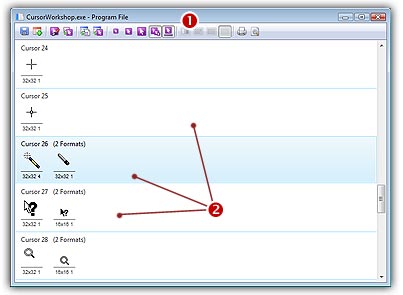
opens in a document window ( ) displaying all the cursors
it contains. If not already set, we recommend you to choose the display option "All Formats In Raw". In this mode, one cursor is displayed on each row with all the formats it contains (
) displaying all the cursors
it contains. If not already set, we recommend you to choose the display option "All Formats In Raw". In this mode, one cursor is displayed on each row with all the formats it contains ( ):
):
3. To modify a cursor just double click on it or select it and press Enter.
4. The cursor opens in an editor window. Just modify it as if it was a standard cursor file.
5. When done, update it by choosing File/Save or press Ctrl+S. Close the editor window.
6. The cursor has been updated in the list (if you modified the displayed format).
7. Repeat steps 3 to 7 for other cursors if necessary.
8. Update the program file by choosing File/Save.
Extracting cursors from a program
1. Choose File/Open and select a program file EXE, DLL, OCX... You can also open an Browser window (Ctrl+Alt+O) and double click on a program file.
2. The program opens in a document window displaying all the cursors it contains.
3. Select the cursors you wish to extract.
4. Choose Program Files/Save as Cursors (CUR or ANI)
5. Select the destination folder and click OK.
6. The cursors are extracted as CUR or ANI (depending on their types).
Adding to the Librarian cursors from a program
1. Choose File/Open and select a program file EXE, DLL, OCX... You can also open an Browser window (Ctrl+Alt+O) and double click on a program file.
2. The program opens in a document window displaying all the cursors it contains.
3. Select the cursors you wish to add to the librarian. Choose File/Add to the Librarian or press F3.
If the selected item in the librarian is a folder:
4. A dialog box opens. Choose either to extract them as separate cursors (CUR/ANI) or to create a cursor library (CUL).
5. Click OK. The cursors are extracted as requested.
If the selected item in the librarian is a cursor library:
4. The cursors are immediately added to the selected library.