Create Different Color Versions of an Icon
In relation to Axialis IconWorkshop, this article offers information on the following topics:
In interesting effect is to create different color versions of the same icons. For example, creating Red and Green versions of our "Blue Sphere" icon:
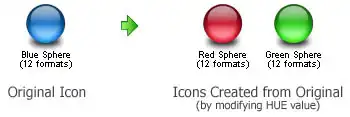
Opening the existing icon, modifying the image HUE (overall color)
1. Open your original icon file. As example, we'll work on the Blue Sphere icon which is located in the Librarian (if not displayed, press ESC). In the Icons/Tutorial subfolder, select and open the "MySphereIcon.ico" icon.
2. The image file opens in a document window. In the image format list, select the 48x48 Windows XP image:
3. Choose Draw/Adjustments Effects/HUE-Saturation or press "U". A Dialog box opens. In the Hue group specify 140 either using the slider or the edit zone. When done, click OK. The sphere color has been changed to Red!
4. Select the whole image (press Ctrl+A) then Choose Draw/Adjustments Effects/HUE-Saturation or press "U". A Dialog box opens. In the Hue group specify 140 either using the slider or the edit zone. When done, click OK.
The sphere color has been changed to Red!
Axialis IconWorkshop
Create Icons using a Professional Authoring Tool


- Axialis IconWorkshop is a professional icon authoring tool for creating icons on multiple platforms and devices.
- The tool supports creating icons for Windows, macOS, Unix/Linux, Android, iPhone.
- The interface is designed to increase productivity, with easy accessibility to all tools and a powerful built-in librarian and file explorer.
- Batch processing features are included for creating multiple icons at once.
- The tool includes features such as icon creation from images and image objects to help create professional-looking icons quickly.
- The tool is compatible with industry standards and includes plugins for Adobe products and Microsoft Visual Studio.




Creating a new icon from this image
5. In the menu choose Edit/New Windows Icon Project from this Image (Ctrl+Shift+Y).
6. The dialog box New Windows Icon From Image opens. In the Name group 1, enter the icon project name "Red Sphere". Do not specify any extension.
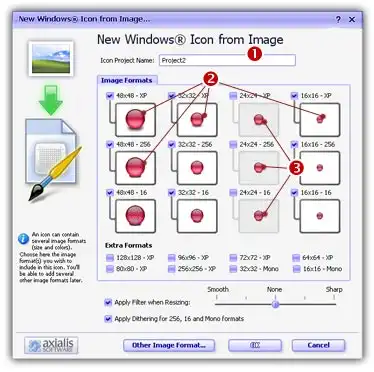
7. In the Image Formats group, select the image formats you whish to add in the icon 2 and unselect the unwanted images 3. Just click on the image preview to select/unselect. To know more about the desired Windows standard image format, see What is an Icon topic.
8. When done, click OK. The icon is automatically created with the various image formats you've selected.
Close the "Blue Sphere" icon (that you've modified to red) without saving it! DO NOT SAVE THIS ICON. Respond NO to the question "Saving Changes you Made?".