 ). The associated dialog box appears (see below).
Lesson 3.2 - Defining the background
In this lesson, we'll customize the screensaver background. We'll choose a solid black background. It is already black by default but we explain the procedure for learning purpose.
Change the background
1. In the project window click on the Background tab (). The associated dialog box appears (see below).
2. Select the Solid Color background type by clicking on the small option bullet ( ).
).
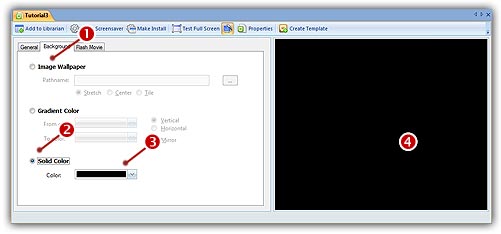
3. In the Color field, click on the down arrow on right ( ). A drop-down list with several colors appears. Click on the "Black" color. If you followed correctly the instructions, the preview window on right should display a black background (
 ).
).
IMPORTANT: We have chosen a black screen because the background color of the Flash file we'll use is black. This is important that you use the same (or similar) color to avoid color flashing when the screensaver starts.
Lesson 3 - Specifying the Flash file