Convert a Macintosh Icon to Windows
In relation to Axialis IconWorkshop, this article offers information on the following topics:
- What's the difference between Windows and Macintosh icons?
- Which image formats are included in Macintosh icons?
- Convert the icon to Windows, keeping all Macintosh image formats
- Creating a Windows icon from a Macintosh icon
- Where to find Macintosh icons?
- How to unpack Macintosh icon archives?
What's the difference between Windows and Macintosh icons?
Microsoft Windows and Apple Macintosh icons are very similar. They both have several image formats embedded in the same icon. But the file format is totally different. You cannot use Macintosh icons under Windows because the file format is not compatible. You must convert them to Windows ICO file format (with IconWorkshop of course!).
All kinds of formats can be included in a Windows ICO file (you can even create non-square icons). With Macintosh icon files this is not possible. Only some strictly-defined image formats can be included.
Axialis IconWorkshop supports the following Macintosh icon files: ICNS, RSC and BIN. Icons from system 7.5, 8.5, 9.x and 10.X are supported. You can easily open them into the Icon Editor and save them as Windows ICO format. During this operation, we recommend you to remove special Macintosh formats which are useless under Windows.
To learn more about Windows and Macintosh icon file formats, read this topic: Macintosh vs Windows icons
Which image formats are included in Macintosh icons?
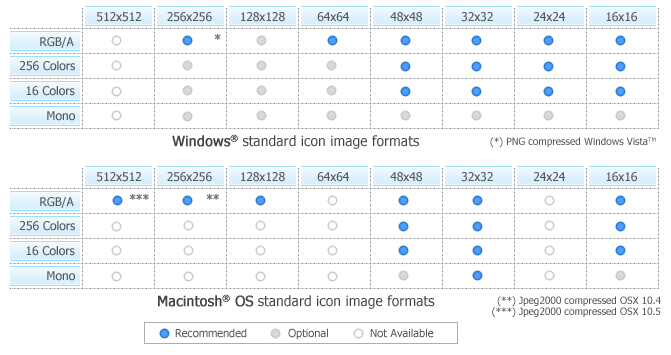
Here is the list of image formats you can find in Macintosh Icons:
• Leopard (512x512) - 32 bits (alpha channel)
• Tiger (256x256) - 32 bits (alpha channel)
• Thumbnail (128x128) - 32 bits (alpha channel)
• Huge (48x48) - 32 bits (alpha channel), 256 colors, 16 colors, mono
• Large (32x32) - 32 bits (alpha channel), 256 colors, 16 colors, mono
• Small (16x16) - 32 bits (alpha channel), 256 colors, 16 colors, mono
• Mini (16x12) - 256 colors, 16 colors, mono
The new OS-X icons can contain very large image formats (512x512, 256x256 - 32 bits). These formats are also supported in IconWorkshop. Although those image sizes are not actually used in Windows, it's a good idea to start from hi-res sizes to create a new Windows icon.
Here is a summary of image formats you can find in Macintosh and Windows Icons:




Convert the icon to Windows, keeping all Macintosh image formats
This is the simplest way to proceed. However, some Macintosh specific image formats may be useless (even if Windows ICO format supports all the image formats).
1. Open the Macintosh icon. Choose File/Open... The icon is opened in a document window.
2. Choose File/Save As, select Windows (ICO) as file type and specify a new name.
- or -
2. Choose File/Save As Windows Icon... (Ctrl+Shift+S) and specify a new name.
- or -
2. Click the following button on the toolbar and choose a new name for this icon.

Creating a Windows icon from a Macintosh icon
This operation is not a conversion, it's a creation of a new icon. It will not preserve all the existing formats. It will create a new icon based on the largest and most coloured image included in the original Macintosh icon (usually 128x128 or 48x48 with alpha channel).
1. Open the Macintosh icon. Choose File/Open...
2. When the icon is opened, select the largest and the "most coloured" image format in the list (best with 128x128 or 48x48 with alpha channel).
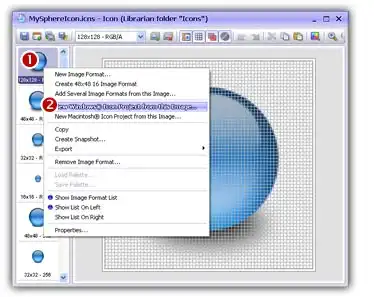
3. Right-click on the selected image format in the list 1, a menu opens. Select "New Windows Icon Project from this Image..." 2.
4. A large dialog box opens. In the Name group 1, enter the icon project name. Do not specify any extension.
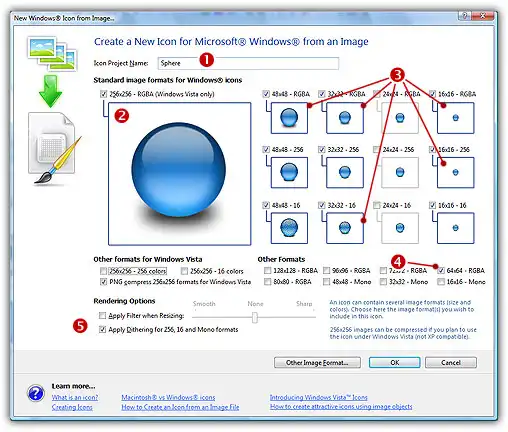
5. In the Image Formats group, select the image formats you whish to add in the icon (2 3 4).
6. You can also add extra formats (128x128, 96x96...). When done, click OK. The new Icon Project document window is created with all formats embedded.
7. Save your icon to Windows format. choose File/Save and choose a new name (.ICO) for this icon.
Where to find Macintosh icons?
Many websites offer various Macintosh icons package for download. Try to search using Google or Yahoo for the following terms:
• "Macintosh icons"
• "Mac icons"
How to unpack Macintosh icon archives?
Most of these websites propose to download icons in archives using SIT/HQX packed file format. This file format is widely used by Macintosh users. To unpack these archive files under Windows, you need a specific tool: StuffIt Expander™ for Windows. Click here to visit StuffIt website.
To know how to use StuffIt Expander™ to unpack Macintosh icons under Windows, see the following topic: How to Use StuffIt Expander to Read Macintosh Icons