Add a RSS reader in your Screensaver
With Axialis Professional Screen Saver Producer you can create screensavers with a RSS reader embedded. RSS, which means "Really Simple Syndication", is a new way to publish information online. Think of it as a distributable "What's New" for your site.
At the heart of the technology is special Web coding, called XML, which has been widely developed by the online community over the past few years. Anyone can pick up the RSS codes and with the appropriate software display the information.
A RSS reader is included in the screensavers you will compile. You just have to create your own online RSS feeds (see tutorial link below) and add the URLs to them in the above list. Adding RSS news in your screensaver is a great idea.
To get more information on how to install RSS feeds on your website, visit this site: RSS Tutorial for Webmasters
Important
If your screensaver includes a RSS reader, it will attempt to access the Internet. This may pop-up a firewall alert on the end-user computer. An Internet access may be considered as suspicious by the this user (malicious codes like virus or trojans act like this). We strongly recommend to inform the end-user about this.
Add a RSS reader in a screensaver
1. Open your screensaver project. It works with all kind of screensavers (sprite, Flash, slideshow, video). Compile it either as SCR or as Install Package. Choose Project/Compile an Installable Screen Saver File (Shift+F4) or Project/Compile a Screen Saver File (F4).
2. The first dialog box of the compilation wizard opens. Follow the procedure until Step 2 "Description" (see below) if you choose to compile a SCR file or until Step 4 "Screensaver Information" if you choose to create an install package.
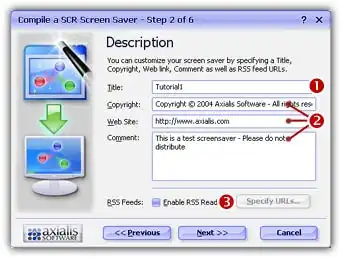
3. To activate the RSS reader and specify feeds, in the RSS feeds zone, click on the Enable RSS Reader option 3. The Specify URLs button is activated. Click on this button, a second dialog box opens:
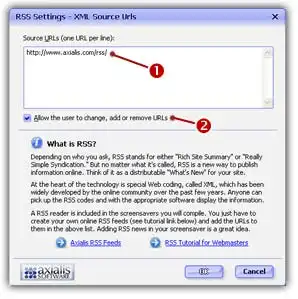
4. In the Source URLs zone 1, enter the feed URLs you wish to use in the reader. Specify one URL per line. The reader will downloads the news in all URLs when the screensaver starts and display them all in sequence.
You can also specify UNC network paths to XML files. It could be useful to publish news via the screensaver on all the computers installed in your company. For example, specify: "\\MainServer\CommonFiles\News\daily-news.xml"



5. If you want to allow the user to modify these URLs (add/remove) once the screensaver is installed, click on the associated option 2. When done click OK. Continue with the compilation wizard.
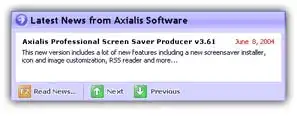
6. Once the compiled screensaver is installed, the RSS reader will access the internet each time it starts (in background), get the news and display them is a small window in the lower-right corner of the screen:
Note
The end user can enable/disable the RSS reader and change URLs (if you allowed it) from the screensaver "configure" dialog box.