Create a Time-limited Shareware Screensaver
In relation to Axialis Screensaver Producer, this article offers information on the following topics:
- Compile the screensaver in shareware mode
- Specify Advanced Parameters
- Compile the installation package
- Generate activation codes
With Axialis Professional Screen Saver Producer you can create shareware versions of your screensavers. It means that these versions can be used for a limited period of time by a user for test purpose. When this period is over the user has to purchase it or un-install it.
When the user purchases the screensaver you just have to send him an activation code (that you've generated with this program too) to transform the trial version in a fully working version. You'll be able to generate Activation Codes using a built-in feature (Alt+F6). Click here to read more about activation codes.
Compile the screensaver in shareware mode
1. Open your screensaver project. Choose Project/Compile an Installable Screen Saver File (Shift+F4) or click on the Compile Installable Screen Saver button in the toolbar.
2. The first dialog box of the compilation wizard opens. Follow the procedure until Step 8 "Activation Code" (see below)
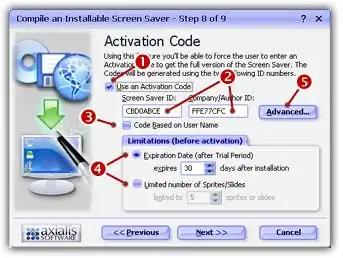
3. If you want to create a limited screensaver, you must click on the Use an Activation Code option 1. The other fields of the dialog box enable.
4. Below you see 2 fields with IDs 2. The IDs that are proposed here are based on the screensaver title and the company name you entered. Of course you can change them but don't forget them once the screensaver is compiled. You'll need them to generate activation codes for the users. You'll be able to Generate Activation Codes using a built-in feature after the compilation (Alt+F6).
 In the Screen Saver ID area, specify the Screen Saver ID (an 8 digit hexadecimal number - 32 bits) that will be used to generate the Activation Codes. Two IDs are used to generate the codes: The Screen Saver ID (which is different for each library you compiled) and the Company ID (which is constant but differs for another company). This number is proposed but you can modify it (recommended).
In the Company ID area, specify the Company ID (another 8 digit hexadecimal number - 32 bits) that will be used to generate the Activation Codes. This number is proposed but you can modify it (recommended). However, if you modify it, we recommend you to keep the same Company ID for all the screensavers you'll compile.
5. Click Code based on User Name 3 if you want to use the customer name to generate codes. Click here to read more about activation codes.
6. In the Limitations group 4 you can specify if you want to create a Time Limited screensaver or a Sprite/Slide Limited screensaver.
7. Some advanced parameters permits you to fully customize the trial version of your screensaver. To access these parameters, click the Advanced button 5. Another dialog box opens.



8. In the Version Name zone, specify the name of the limited version. Usually: 'Shareware Version', 'Trial Edition', 'Demo Version'...
7. In the Registration URL zone, specify the Web Address of your purchase web page (for example: https://www.axialis.com/purchase). This Web Address will be used in the 'Properties' dialog box as a real hyperlink (the user will be able to click on it to register).
8. In the Registration Text zone, specify the Registration Text. This text will be displayed in the upper-left corner of the limited version of the screensaver. Once the screensaver is activated, this text is hidden. Since the user can activate the screensaver using the A key and register using the R key, adding a reminder in this text is a good idea: "Press 'A' to enter your activation code. Press 'R' to register". This text can be localized.
Information about Localization
The text can be localized using macros (placed in the text body) that permit you to define conditional portions. A conditional portion begins with #if and ends with a #endif. If a text line is not in a conditional portion, it is always displayed. Example:
#if ENGLISH
... Text using english language ...
#endif
... Text always displayed ...
#if FRENCH
... Text using french language ...
#endif
8 language macros are supported: ENGLISH, FRENCH, GERMAN, SPANISH, DUTCH, ITALIAN, PORTUGUESE and RUSSIAN.
9. In the Registration Text zone, specify the Expiration Text. This text will be displayed in the upper-left corner of the screen if the trial period is over. Once the screensaver is activated, this text is hidden. Since the user can activate the screensaver using the A key and register using the R key, adding a reminder in this text is a good idea: "Press 'A' to enter your activation code. Press 'R' to register". This text can be localized.
10. If the "Enter Activation Code During Installation" box is checked, the user will be prompted to enter his activation code (and eventually his name) during the installation of the screensaver. You can configure this option as a proposal or an obligation by choosing an option below.
If the "Propose To Enter Code" option is chosen, the user will be prompted to enter his activation code during install but will be able to bypass this step. He will be able to activate it later during use. In this case, this step is a proposal, NOT an obligation.
If the "Force To Enter Code" option is chosen, the user will be prompted to enter his activation code to proceed with installation. In this case, this step is an obligation, NOT a proposal.
11. When done, click OK.
Compile the installation package
12. Now finish the compilation process of the screensaver. A dialog box opens in which you see the compilation in progress (a few seconds). If a problem occurs during the compilation, you see an error message. If it worked fine, the following screen is displayed:
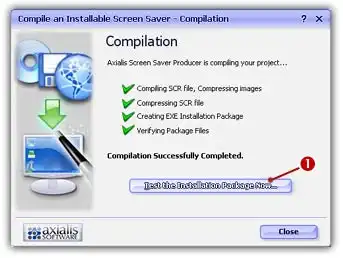
13. You can test the installation package now. Click on the Test the Installation Package Now button 1. The install procedure starts, just follow it. It will install the screensaver on your computer. This is exactly whet the end user will do. Click Close to finish.
Once the demo/limited screensaver starts, it display the message you've specified to ask the user to register.
To send an activation code to the user who purchased, you have to generate it. The application includes a feature that permits you can generate Activation Codes for previously compiled Screen Savers. You can generate two kinds of Activation Codes: Based on User Name (one code generated for each user) or in serial (a list of codes ban be generated). To get more information about the Axialis Activation Codes, click here.
You can generate activation codes at any time. You don't need to open a screen saver project to generate codes. You just need the Company ID and the Screen Saver ID you used during the compilation (see above).
14. To open the Generate Activation Codes dialog box, choose Edit / Generate Activation Codes or press Alt+F6. A large dialog box opens. Please follow this link to Generate Activation Codes.