





Start from Axialis icon packs
Browse ready-made icon packs you can use as a starting point before refining SVG paths and composing app icons in IconVectors.
Axialis IconVectors
Vector Icon Editor for Developers
New IconVectors 2.20 for Windows: edit from VS Code, reuse SVG styles, and automate production from the command line.
Discover Style Libraries, embedded SVG styles, Batch Apply Style, source repair, and 170 local MCP tools. macOS and Linux remain available in version 2.10.
Axialis IconVectors is built for developers who need more than a generic vector tool. Edit, clean up, and export SVG icons for software projects. Create clean app icons for SVG, XAML, React, Vue, SwiftUI, PNG, ICO, and ICNS.
SHARE THIS PAGE


Axialis IconVectors is a lightweight, fast vector icon editor built for developers. Version 2.20 for Windows adds Visual Studio Code integration, reusable Style Libraries, styles shared inside an SVG, Batch Apply Style, an independent CLI, source repair, and 170 local MCP tools. Browse complete SVG folders in Icon Explorer, edit precise paths, recolor and export icon sets, and generate live code for SVG, XAML, WPF Geometry, VectorDrawable, SwiftUI, React TS, Vue TS, and C++. macOS and Linux remain at version 2.10.
Version - Perpetual License
One license is required for each developer using the product.

V for Windows
V for macOS and V for Linux
Free 30-day trial on all three platforms
English, Dutch, French, German,
Italian, Portuguese, Spanish
+ 27 others...
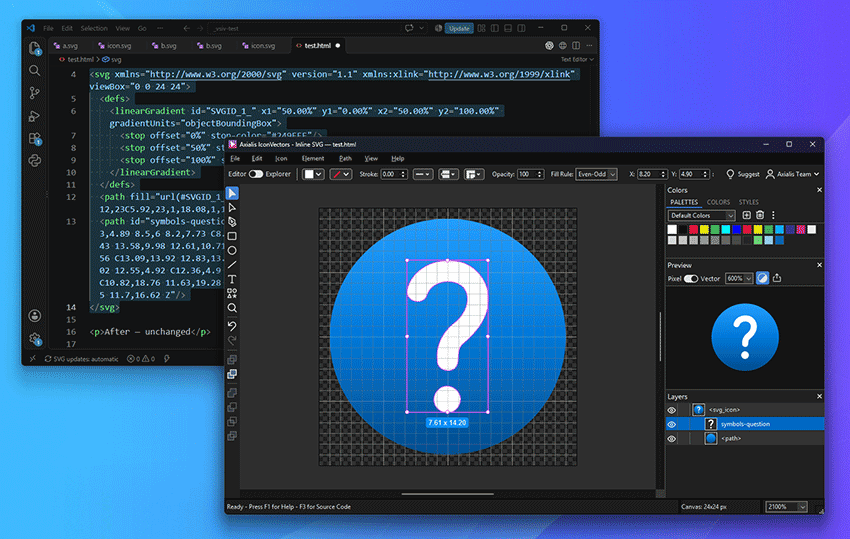
Open SVG files, supported asset references, or inline SVG from Visual Studio Code, edit visually, and return to your source. The companion installs from Windows setup or IconVectors' File menu and does not require an AI assistant.
Capture colors, gradients, stroke settings, and opacity in shareable .axstyle libraries. Apply presets to artwork or new drawing. Use Embed Styles in Icon and This Icon to manage shared definitions saved inside the SVG; changing a definition updates the elements using it.
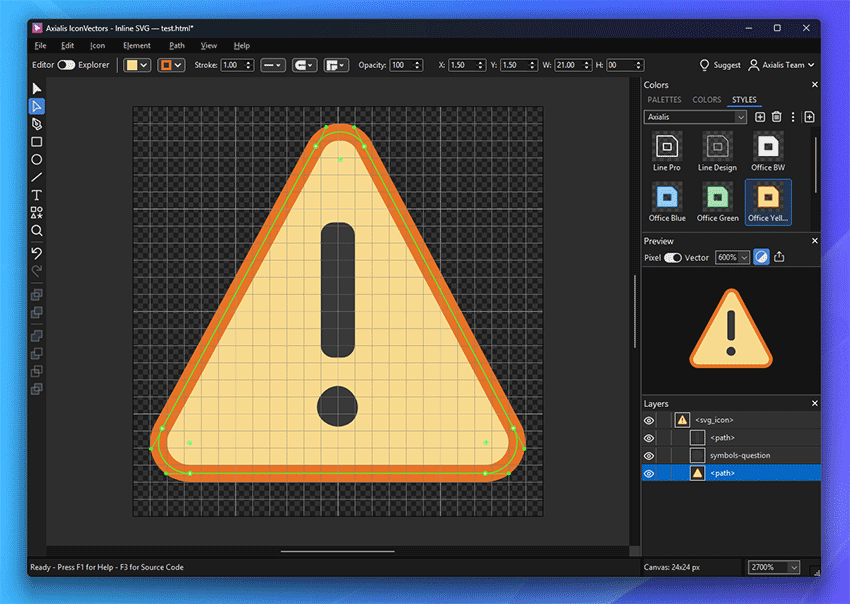
The new Batch Apply Style command styles complete icon sets: choose a complete preset, fill only, or stroke only, preview the result, and modify originals or create copies. It preserves artwork geometry and canvas dimensions.
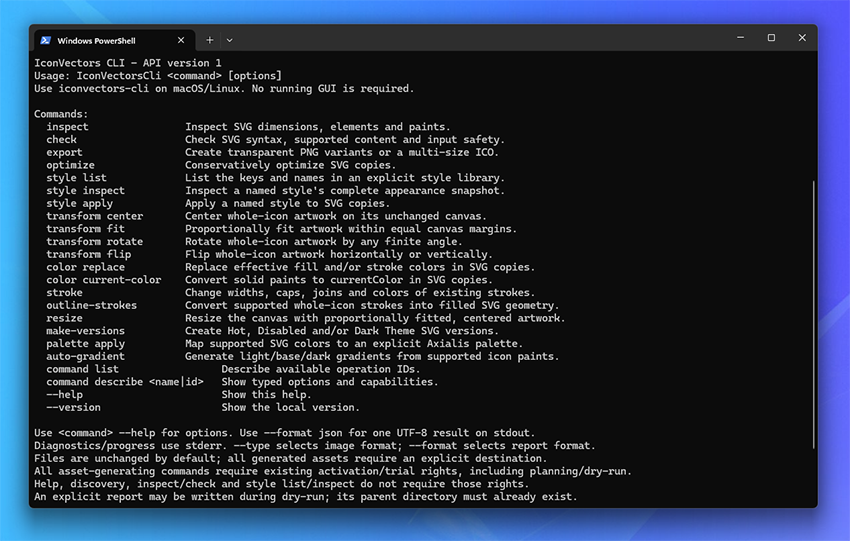
IconVectorsCli.exe processes SVG files without opening the Editor or connecting to MCP. Check, optimize, export PNG/ICO, apply styles, palettes, gradients, and geometry transformations to files or folders, with dry-run plans and JSON reports. SVG transformations create copies; asset-generating commands use existing activation or an unexpired trial.
Repair failed SVG imports in a highlighted source editor with live checking. Keep Favorite Folders, browse Previous/Next Icon from the Editor, save across windows, and use external-change protection and new path connection commands.
The Windows MCP catalog grows to 170 tools, with four Styles tools and Small, Medium, or Full profiles, plus a Junie setup guide. The live Styles tools, Explorer Batch Apply Style, and independent CLI serve distinct workflows. Read the version 2.20 release notes.
Available now for Windows 32-bit and 64-bit. macOS and Linux remain at version 2.10; the earlier Icon Explorer, batch production tools, Element Library, and code export features are retained.
The Linux release completes the version 2.10 rollout across Windows, macOS and Linux. Process SVG collections with 14 validated batch commands, find reusable artwork with Element Library search, and automate your workflow with 166 local MCP tools. Moving between Explorer and Editor is smoother, with optional Auto Save Icons and numerous editor fixes and enhancements.
Available for Linux x64 on Ubuntu 24.04 LTS or later with GTK3. Download the DEB package and free 30-day trial, install it using your software manager, and sign in to activate your license if necessary. Existing Linux users can update by installing the latest DEB package.
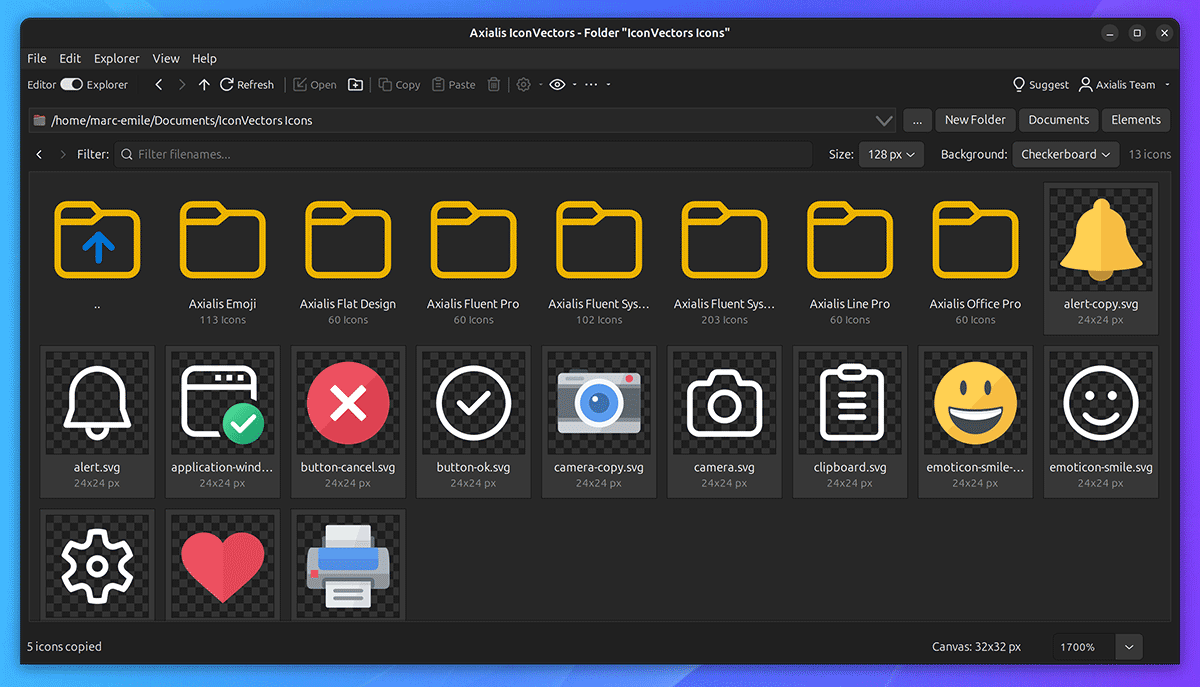
Browse and manage SVG collections in the Linux Icon Explorer.
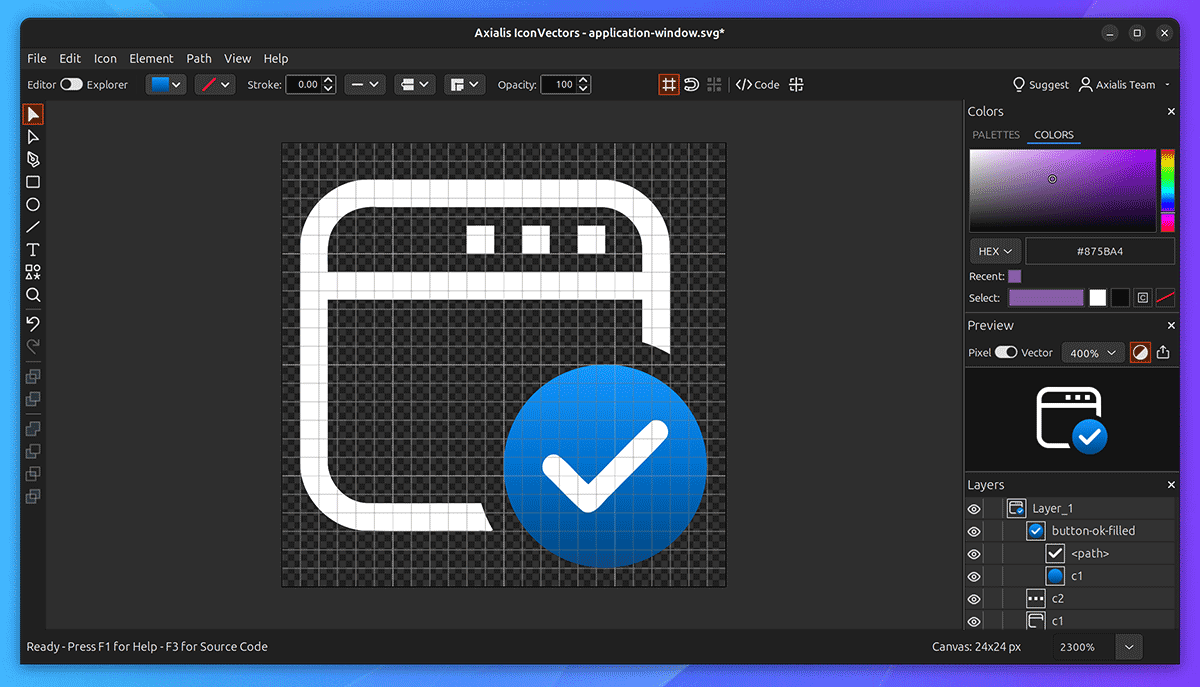
Edit fill and stroke colors with the Colors panel on Linux.
IconVectors focuses on the essentials for UI icon work: speed, accuracy, and clean exports. Create crisp icons for ribbons, toolbars, and menus without the bulk of general purpose vector suites.
Fast, responsive, single window workflow
Precise numeric adjustments and alignment
UI adapts to your OS/IDE theme
Organize complex icons with ease

Boolean ops, gradients, transforms
Bezier control, node editing, snapping
Copy clean markup as you design
Works with VS, VS Code, Illustrator
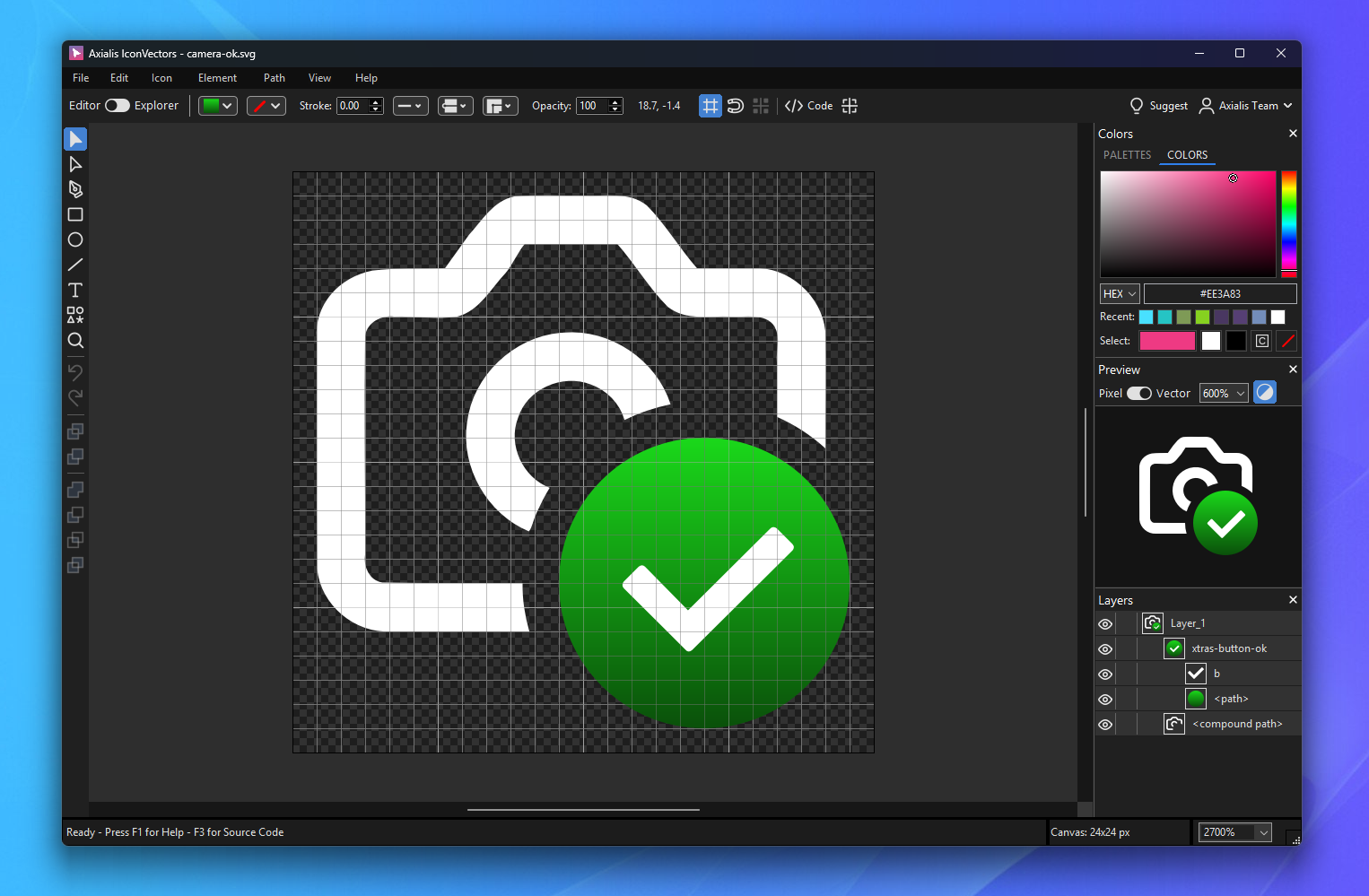
IconVectors includes tools built specifically for icon creation—not general illustration. Add a badge overlay in one click and let IconVectors automatically create a precise cutout behind it, so the badge stays crystal-clear at small sizes. No manual masking, no layer gymnastics—just fast, readable icons ready for ribbons, toolbars, and menus.
IconVectors pairs a built-in MCP server with Analyze/Clean Up Icon, letting compatible AI agents work directly with the live editor. Instead of generating disconnected raw SVG code, the AI can create and edit real vector elements inside IconVectors, using the same canvas, layers, snapping, and source-code tools as a human designer.
This opens a practical developer workflow: use an AI agent such as Codex, Claude, VS Code Copilot, or Cursor to generate a first-pass icon, then refine it immediately in IconVectors and export production-ready assets. AI becomes fast ideation; IconVectors remains the place where the icon is analyzed, cleaned, aligned, normalized, and shipped.
Once the MCP server is configured in your AI agent, just type a prompt to work with icons. for example, the prompt below creates an info icon:
Using IconVectors MCP commands, create a new 32x32 document named "info icon", draw a blue circle in the center, use a color from the "Axialis Colors" palette, draw a large info "i" white letter using 2px round corners, center vertically and horizontally the "info" group, and export it as SVG.
Here is the AI automation in action, Codex CLI on left, Axialis IconVectors on right:
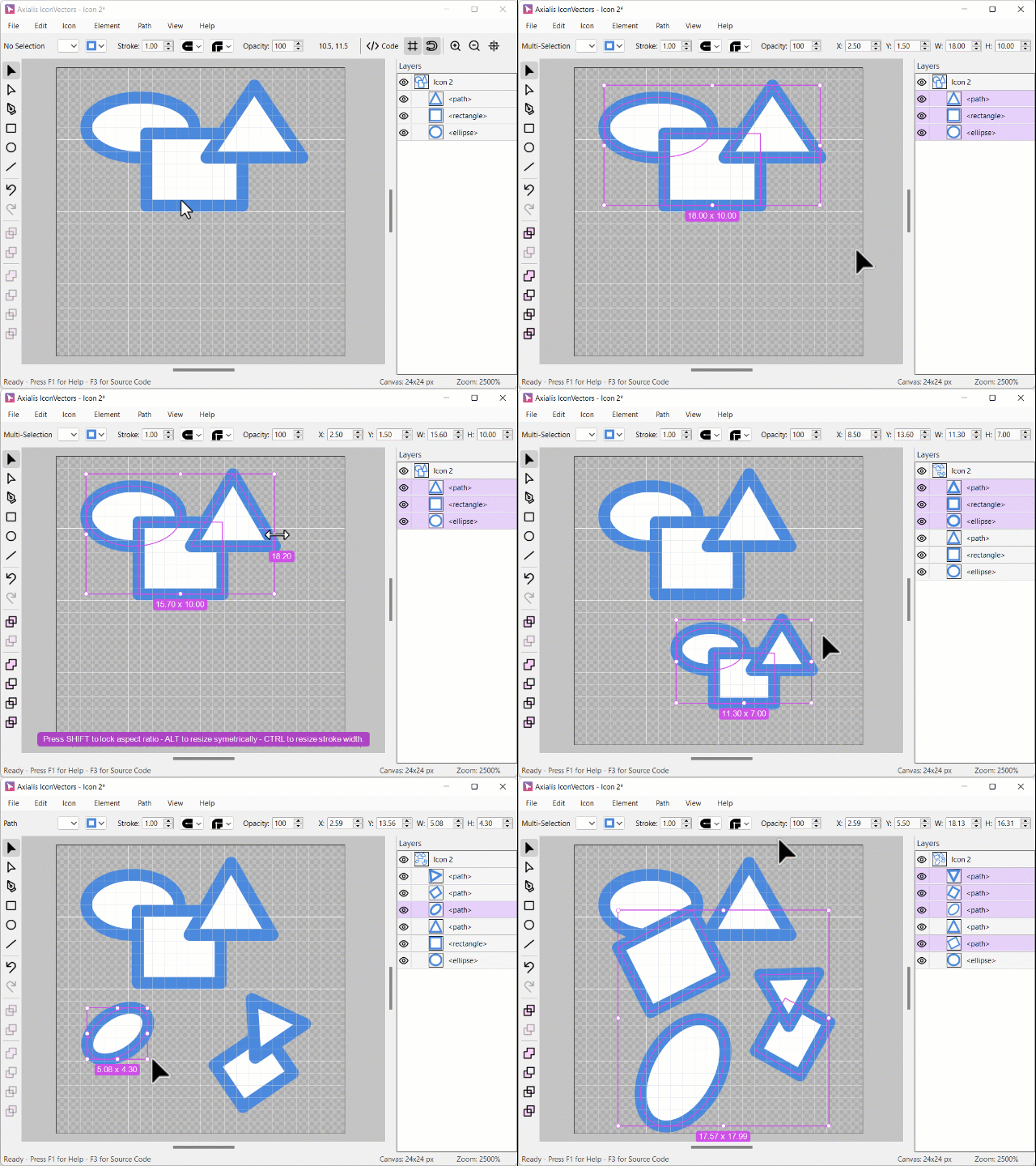
Create basic shapes such as rectangles, ellipses, and polygons. Each object is drawn with smooth vector precision, giving you full control over position.
Select elements effortlessly—either with a simple click, a selection rectangle, or directly from the layer list. Managing complex compositions becomes easy.
Resize one or several shapes at once, maintaining aspect ratio or adjusting freely. You can even scale using central symmetry for perfectly balanced transformations.
Duplicate elements with copy/paste or the Alt + drag & drop gesture, then fine-tune their layout with alignment tools.
Finally, rotate single objects or entire groups smoothly, ensuring every angle and orientation matches your design.
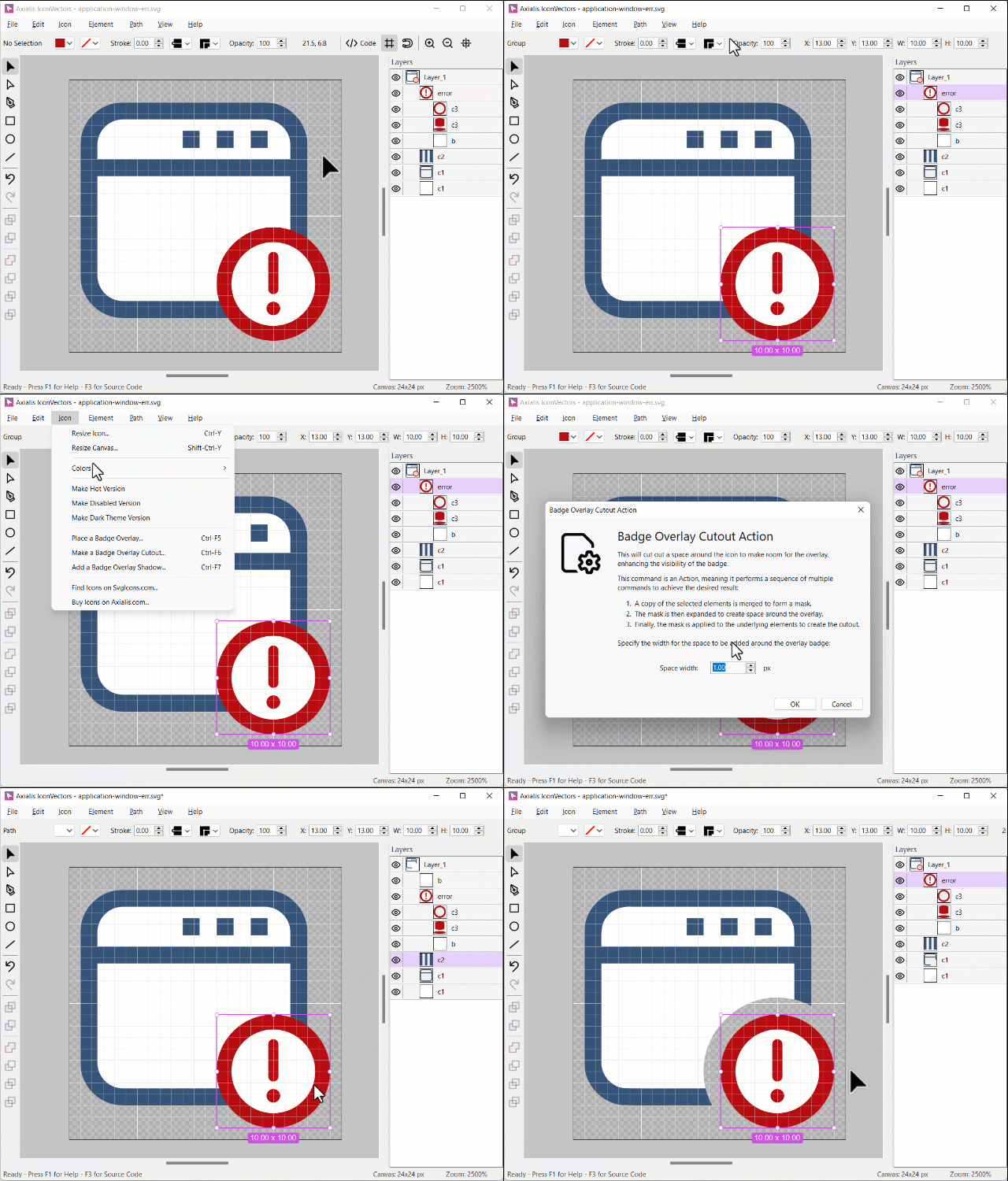
IconVectors includes a unique feature that lets you add badge overlays with visual effects directly to your icons, perfect for creating status, or action symbols.
Start by opening an existing icon or drawing a new one as your base. Position and resize it to fit your intended design.
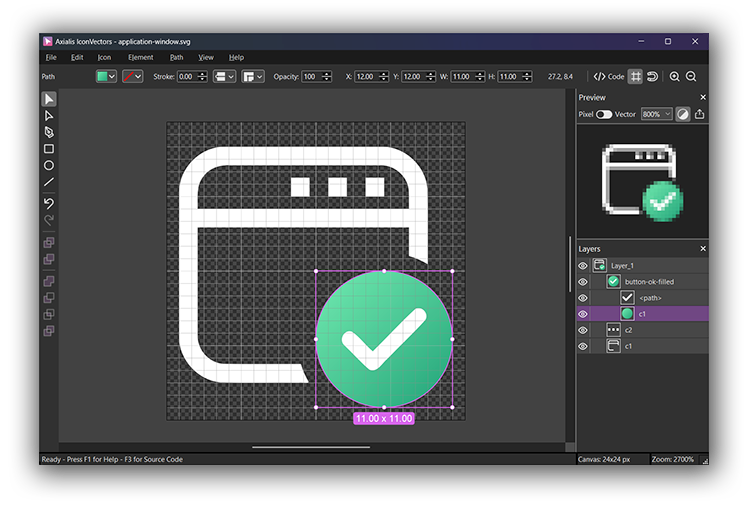
Next, add a badge, typically placed in a corner of the icon. You can easily select, move, and adjust the badge to achieve the desired alignment and size.
Then activate the exclusive Icon-First Cutout feature, which automatically generates a small cutout around the badge. Simply choose the desired cutout width. The operation is applied in one batch process.
The result is a polished icon with a perfectly integrated badge overlay and a subtle space around it, ensuring maximum clarity and readability even at small sizes.
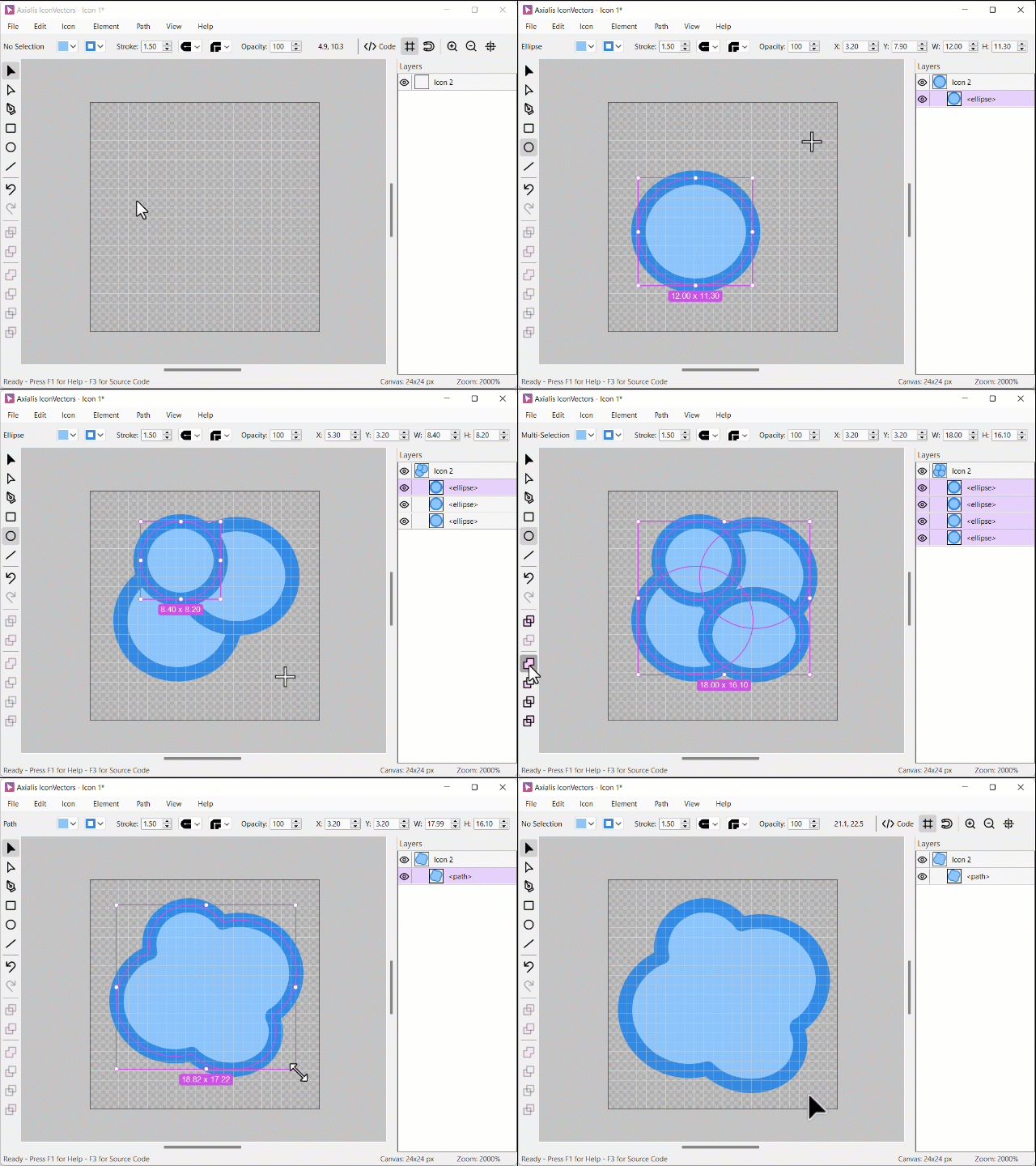
With IconVectors, you can build complex vector elements by simply combining basic shapes. This powerful approach lets you design sophisticated icons while keeping full control over each component.
In this example, we’ll create a cloud shape from several overlapping ellipses. Each ellipse is drawn individually using the shape tool and positioned to form the desired outline.
Once all the ellipses are in place, select them together and apply the Union boolean operation. IconVectors instantly merges the shapes into a single, unified vector element.
The new combined object can then be moved, resized, or further transformed just like any other shape—making complex icon creation both fast and precise.
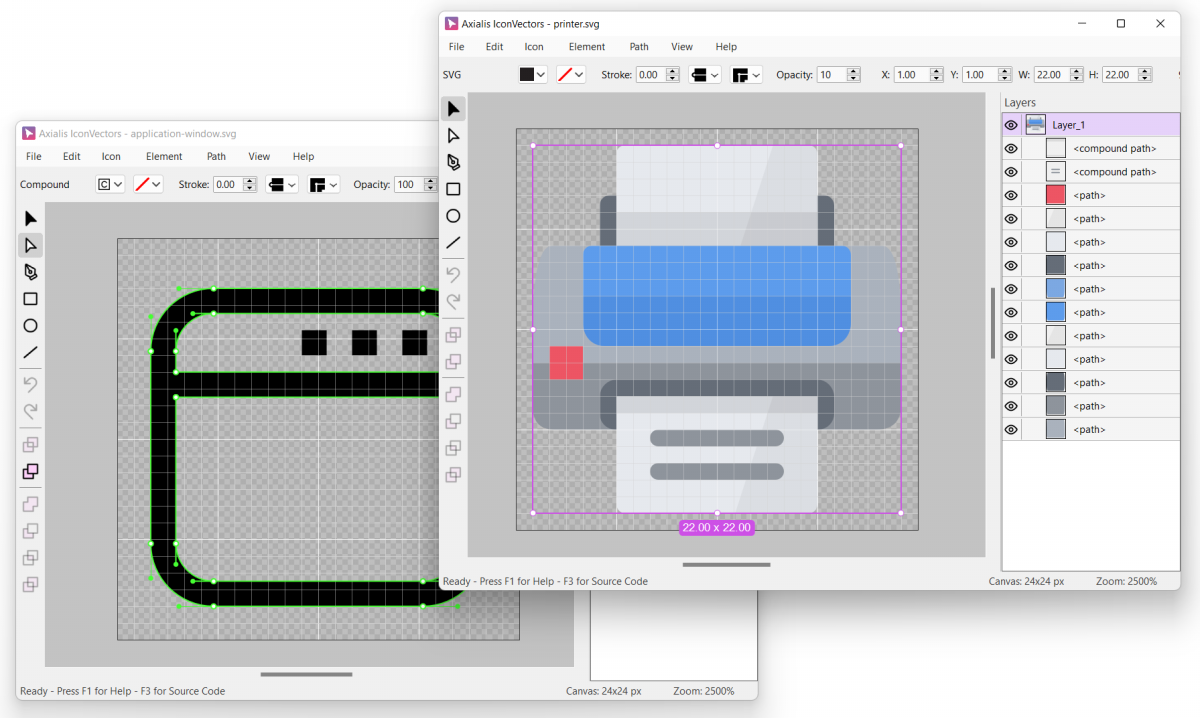
IconVectors uses a single-document interface, keeping your workspace clean and focused on one icon at a time. However, you can open multiple instances of the application simultaneously.
This allows you to work on several icons in parallel—copy and paste elements between documents, or place windows side by side to compare designs visually.
With this flexible setup, you can freely refine multiple icons within the same project, ensuring consistency and efficiency across your entire icon set.
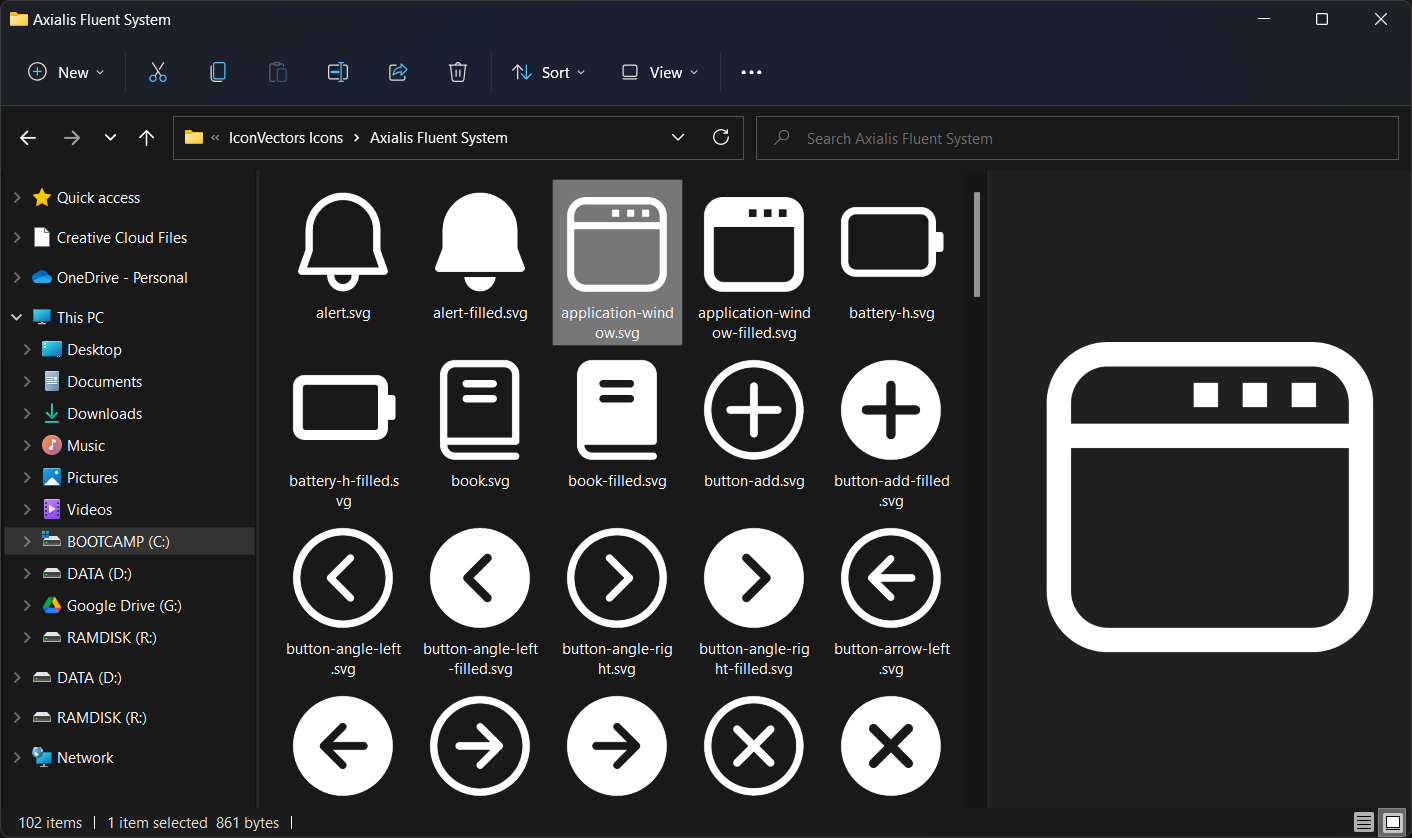
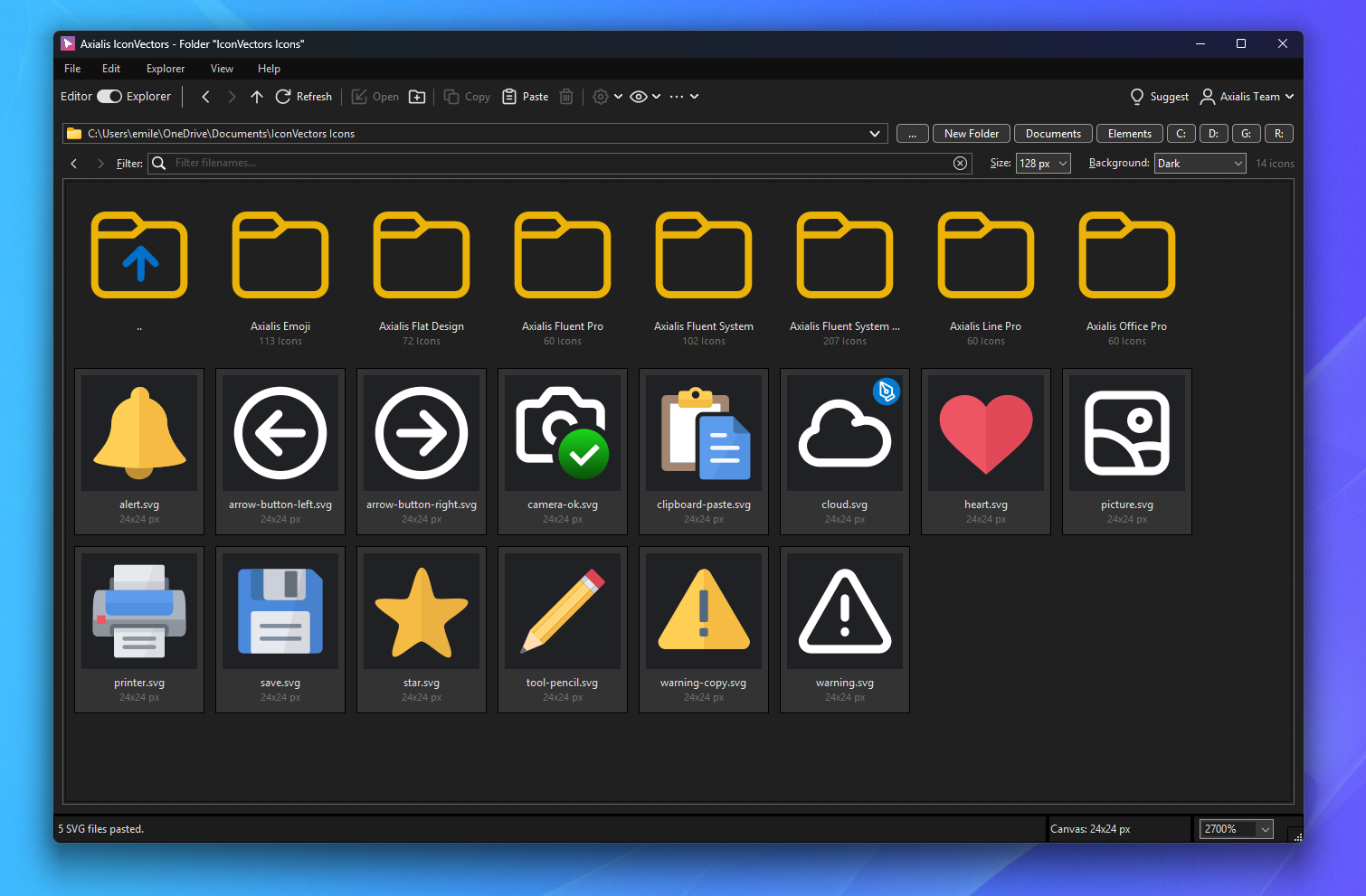
IconVectors includes a selection of sample icons taken from our extensive Axialis icon collection. These ready-to-use examples help you explore design techniques and quickly start creating your own icons.
In addition, the built-in SVG Shell Extension for Windows adds SVG thumbnails directly in File Explorer, letting you browse your vector assets visually instead of by filename.
Together, these features streamline your workflow and make it faster to find, preview, and reuse design elements across your projects.
Axialis IconVectors is a lightweight SVG Icon Editor designed specifically for developers, UI designers, and software engineers. Unlike heavier tools such as Adobe Illustrator or Inkscape, which are tailored for large vector drawings, IconVectors focuses on productive, pixel-perfect results for small SVG assets such as icons required in software projects. Axialis IconVectors combines speed and lightweight performance to easily fit into your workflow.
The editor provides key vector operations, including anchor point adjustments, curve editing, geometric shapes creation and boolean operations. The layer management allows quick grouping, visibility control, and structured editing.
The application allows rapid icon creation and customization with tools for element selection, transformation, and color modifications. As a developer, you'll like the ability to preview and export real-time code in SVG, minified SVG, SVG Symbol, XAML, WPF Geometry, VectorDrawable, SwiftUI, ReactTS, VueTS, and C++ formats.
Icon-specific features such as automated actions for badge overlay cutouts and shadows further accelerate your workflow. Icon adjustments, like canvas resizing, brightness and contrast modifications, hue/saturation tuning, and automatic recoloring for UI state variations, ensure your icons adapt perfectly across diverse applications.
Version 2.20 for Windows adds VS Code integration, reusable and embedded SVG styles, Batch Apply Style, independent CLI automation, source repair, Favorite Folders, and 170 MCP tools. The existing Explorer, color, geometry, and export workflows remain available. macOS and Linux remain at 2.10, including Intel and Apple Silicon Macs on macOS 10.15 or later, and Linux x64 on Ubuntu 24.04 LTS or later with GTK3.
Once installed, Axialis IconVectors is fully operational and can be easily integrated into your development pipeline. Its user interface provides immediate productivity, offering both dark and light modes matching your development environment preferences.
You can exchange SVG assets with popular development tools such as Visual Studio, VS Code, Adobe Illustrator and more. Axialis IconVectors supports multiple application instances, simplifying simultaneous work on various icons and allowing drag-and-drop transfers.
The local MCP workflow remains integrated: launch IconVectors and let a compatible AI client start the MCP companion to work with the live document or Explorer. Windows 2.20 has 170 tools, including reusable Styles; macOS and Linux 2.10 have 166. Windows also offers Small, Medium, and Full profiles and a Junie setup guide. Compatible clients include Codex, Claude, VS Code Copilot, Cursor, Gemini CLI, Kiro, Cline, and GitHub Copilot CLI.
Sample SVG icons are installed in your Documents folder. Open the Icon Explorer to browse them as thumbnails, filter filenames, organize files, and open any icon directly in the Editor. In version 2.10, use New Icon from the Explorer and optionally enable Auto Save Icons when moving between files.

Axialis IconVectors includes a comprehensive set of tools specifically designed for creating and managing vector icons. With a focus on performance, ease of use, and integration into development workflows, it gives you everything you need to build and export precise, professional-quality icons. More powerful features and improvements are actively in development and will be delivered through frequent updates:
Compatible with Windows 7, 8/8.1, 10, and 11. Available in 64 bit & 32 bit.
Supports 64 bit Intel/Arm Macs (macOS 10.15 or later).
Version 2.10 supports Linux x64 on Ubuntu 24.04 LTS or later, with GTK3. Install or update using the DEB package.
When you purchase an Axialis product, you receive a license with clear and valuable benefits.
Your license is perpetual, meaning you can use the product forever, without limitations. Additionally, you receive lifetime support for your purchased products, ensuring you're never left without help.
With your initial purchase, you'll enjoy free product updates and new features released during the first year after your purchase date. On Windows and macOS 2.0 or later, use "Check for Updates" to install available updates. On Linux, download and install the latest DEB package.
After the first year, your product continues to function without any limitations, and support remains available. However, to access new versions released after your initial year, you will need to renew your license. Renewal ensures you keep benefiting from improvements, new features, and compatibility updates.
This approach guarantees ongoing improvement and timely feature enhancements while ensuring long-term affordability and flexibility. You can decide when and how often you renew based on your specific needs, always benefiting from the latest innovations at your convenience.
If you already hold a Lifetime License purchased previously, all terms remain valid as originally promised. Your lifetime updates and benefits remain unchanged.
To review the full license terms, please click here.
FOR IMMEDIATE RELEASE
November 4, 2026
Axialis IconVectors 2.20 for Windows Adds VS Code Integration, Reusable Styles and Command-Line Automation
Axialis Software releases IconVectors 2.20 for Windows, adding Visual Studio Code integration, reusable Style Libraries, embedded SVG styles, batch styling, an independent command-line interface, SVG source repair, and 170 local MCP tools.
Paris, FRANCE - Axialis Software announces IconVectors 2.20 for Windows 32-bit and 64-bit, an update for developers, UI designers, and teams creating and maintaining SVG icon collections.
Key features include:
IconVectors 2.20 retains the integrated Icon Explorer, file management, earlier batch production tools, screen eyedropper, searchable Element Library, SVG Properties, Pixel-Align Selection, cleanup, and live code export. Version 2.20 is available for Windows; macOS and Linux remain at version 2.10. A free 30-day trial is available from https://www.axialis.com/iconvectors/.
About Axialis Software
Axialis Software is a leading software development company specializing in design tools that prioritize usability, functionality, and efficiency for both professionals and enthusiasts. Known globally for intuitive interfaces and robust features, Axialis Software supports millions of users worldwide.
Web: https://www.axialis.com/
X: https://x.com/axialissoftware
Facebook: https://www.facebook.com/AxialisSoftware/
Instagram: https://www.instagram.com/axialissoftware/
###
CONTACT
Marc EMILE
LinkedIn: https://www.linkedin.com/pub/marc-emile/21/350/3a1
MEDIA FILES
Social Media Image: https://www.axialis.com/iconvectors/iconvectors-social-media.png
IconVectors Editor: https://www.axialis.com/iconvectors/iconvectors-2-00-main.png
IconVectors Explorer: https://www.axialis.com/iconvectors/iconvectors-2-00-explorer.png
Application Icon (png): https://www.axialis.com/iconvectors/press/iv-icon.png
Application Icon (svg): https://www.axialis.com/iconvectors/press/iv-icon.svg
Axialis Software Logo (png): https://www.axialis.com/iconvectors/press/axialis-logo.png
Axialis Software Logo (svg): https://www.axialis.com/iconvectors/press/axialis-logo.svg
Windows release: November 4, 2026. Available for Windows 32-bit and 64-bit; macOS and Linux remain at 2.10.
Release rollout: Windows - October 6, 2026; macOS - October 12, 2026; Linux - October 14, 2026.
Release rollout: Windows - September 3, 2026; macOS - September 15, 2026; Linux - September 18, 2026.
currentColor, and None quick colors.IconVectors is a paid product with a free 30 day trial on Windows, macOS, and Linux.
Live code: SVG, minified SVG, SVG Symbol, XAML, WPF Geometry, VectorDrawable, SwiftUI, React TS, Vue TS, C++. Bitmaps: PNG, BMP, JPEG, plus Windows ICO and macOS ICNS.
Yes. IconVectors includes a local Model Context Protocol (MCP) server with Claude-compatible tool naming so AI assistants can create, draw, edit, inspect, analyze cleanup issues, apply Auto Gradient, render, and export SVG vector icons through the running IconVectors editor.
IconVectors MCP is designed for local MCP-capable hosts such as Codex and other OpenAI tooling on the same machine, Claude Desktop, Claude Code, Visual Studio Code with GitHub Copilot, Cursor, and similar desktop or CLI clients that can launch a local stdio MCP server.
Yes. Grids, snap, precision path tools, and Pixel-Align Selection help you produce crisp icons for ribbons, toolbars, and menus.
Yes. The Element Library lets you insert ready-to-use SVG elements from disk-backed libraries. You can customize it by adding your own SVG files, with optional line variants in matching line folders.
Yes. The SVG Properties dialog lets you manage the editor viewBox canvas, root width and height output properties, preserveAspectRatio, id, title, and description.
Yes. Pixel-Align Selection is a one-click command that adjusts selected artwork to the pixel grid while handling complex paths conservatively.
Yes. Add badges with automatic cutouts/shadows and create color variants for hot/disabled/dark theme in one click.
Yes. The Text Tool converts typed text into vector paths (one glyph per character) using installed fonts, so you can edit it like any other shape.
The Color Palettes panel lets you manage swatches, sort them, and add all colors used in your icon. Left-click applies a fill color and right-click applies a stroke color.
Yes. Auto Gradient turns a flat fill or stroke color into a same-tone linear or radial SVG gradient with adjustable angle and force.
Yes. IconVectors includes non-destructive SVG dashed and dotted stroke styles, including presets and custom dash patterns.
Yes. IconVectors includes an editable zoom field, a Set Zoom Level dialog, numpad zoom shortcuts, and a drag-to-zoom tool for fitting a selected canvas area.
Yes. The layer list includes lock toggles for elements and groups. Locked items remain visible but cannot be selected or edited with the mouse.
Yes. Use Recolor with Palette to map every icon color to the closest swatch in the selected palette. The action is undoable.
Yes. Focus Mode gives you a distraction-free workspace, and Auto-center Canvas automatically recenters your drawing when resizing the window or toggling Focus Mode.
Yes. You can drag the icon from the Preview Panel to another app; IconVectors exports a temporary SVG during the drag.