Colorizing icons
IconGenerator can apply colorization to icons so they match your application theme or brand colors. Colorization is especially useful when you generate monochrome icon sets for a light/dark UI, or when you want status overlays (error/warning/ok) to be immediately recognizable.
Colorization modes
Colorization depends on the selected icon family. IconGenerator supports two main behaviors:
- Monochrome
A single solid color is applied to the icon (and optionally to the overlay). This is the most common case for line icons and glyph-like icon sets.
- Shaded
The icon keeps its shading details while being tinted (when supported by the icon family). This is useful for icon families that include highlights/shadows and are not purely monochrome.
Note
Some multi-color icon families cannot be meaningfully colorized. In that case, colorization options may be unavailable or have a limited effect.
Where you can colorize icons
You can colorize icons in two places:
In the Generated Icons panel while previewing the result (recommended).
In the export dialog to force a specific color during file generation.
If the Generated Icons panel is not visible, show it using:
F11
Colorize from the Generated Icons panel
Select one or more icons (and optionally overlays).
In the Generated Icons panel, enable Colorize.
Click the color swatch to pick a color from a palette.
The screenshot below shows the Colorize menu opened from the color swatch.
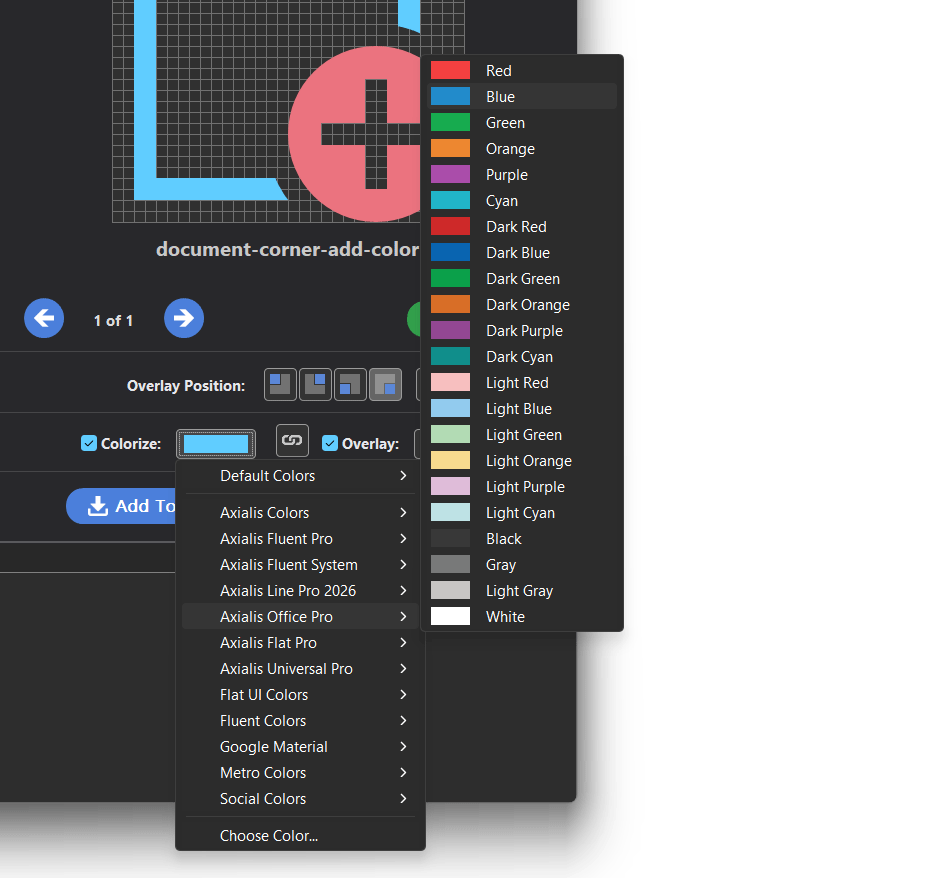
Choosing a color from a palette in the Generated Icons panel.
Colorize overlays separately
Overlays can be colorized independently from the base icon. This is useful for status overlays:
Red overlay for Error
Orange overlay for Warning
Green overlay for OK / Success
Blue overlay for Info
In the Generated Icons panel:
Colorize controls the base icon color.
Overlay controls the overlay color.
The link button between both color controls determines whether the overlay uses the same color as the base icon or a separate color.
Typical workflows:
Two-color status icon: enable Colorize, disable the link, then set base icon and overlay colors separately.
Single-color icon: enable Colorize, keep the link enabled, then pick one color used for both.
Tip
Overlay position shortcuts F5 to F8 are focus-dependent (collections vs generated icons). See Adding Overlays for details.
Force colorization during export
When you export icon files, the export dialog includes an Icon Colors section. This is useful when you want to generate multiple color variants of the same icons (for example light theme and dark theme outputs).
Open the export dialog from:
F3
F4
In the export dialog you can use:
Force Icon Colorization: applies the chosen color to generated icons.
Overlays Separately: lets overlays use a different color than the base icon.
Force Icon Generation in Dark Mode: generates dark-mode variants when supported by the icon set.
See Export formats and options for the complete export options reference.
Working with color palettes
IconGenerator provides several ready-to-use palettes:
Standard UI palettes (Default, Metro, Fluent, Material, Social, Flat UI, …)
Palettes tailored for each Axialis icon family (Axialis Fluent Pro, Axialis Line Pro, Axialis Universal Pro, …)
These palettes appear in the Colorize menu (as shown in the screenshot above).
Palette file location
Color palettes are stored in the user profile folder:
- Windows
C:\Users\<username>\AppData\Roaming\Axialis\IconGenerator\Color PalettesTip: you can paste this in Windows Explorer to open it quickly:
%APPDATA%\Axialis\IconGenerator\Color Palettes
- macOS
IconGenerator for macOS stores user data under the user Library (Application Support). The palette folder is typically located under:
~/Library/Application Support/Axialis/IconGenerator/Color Palettes
If your macOS build uses a different location, search for
*.axpalfiles in Application Support.
Provided palette files
The following palette files are provided by default (names may evolve over versions):
Axialis Colors.axpalAxialis Fluent Pro.axpalAxialis Fluent System 2023.axpalAxialis Line Pro.axpalAxialis Office Pro 2019.axpalAxialis Pure Flat 2017.axpalAxialis Universal Pro.axpalFlat UI Colors.axpalFluent Colors.axpalGoogle Material Colors.axpalMetro Colors.axpalSocial Colors.axpal_default.axpal
Note
The name shown in the menu is defined inside the palette file (the <Name> field), not necessarily the
filename itself.
Customize palettes (AXPAL format)
Axialis palette files use the .AXPAL extension. They are plain text XML files and can be edited with any text editor.
A palette contains:
A global
<Name>(displayed in the menu)One or more
<Swatch>elementsEach swatch has a
<Name>and a<Color>value
Example:
<?xml version="1.0" encoding="UTF-8"?>
<AxialisPalette>
  <Name>Default Colors</Name>
  <Swatch>
    <Name>White</Name>
    <Color>#ffffff</Color>
  </Swatch>
  <Swatch>
    <Name>Black</Name>
    <Color>#000000</Color>
  </Swatch>
  ...
  <Swatch>
    <Name>80% Gray</Name>
    <Color>#464646</Color>
  </Swatch>
  <Swatch>
    <Name>90% Gray</Name>
    <Color>#252525</Color>
  </Swatch>
</AxialisPalette>
To create your own palette:
Copy an existing
.axpalfile in the Color Palettes folder.Rename it (for example
My Brand Colors.axpal).Edit the
<Name>and the<Swatch>entries.Restart IconGenerator if the new palette does not appear immediately in the color menu.
Adobe palette files (ACO)
IconGenerator can also use Adobe .ACO palette files. Place them in the same Color Palettes folder
to make them available in the color menu.