Preferences
The Preferences dialog lets you tune IconGenerator behavior, performance, and the overall user experience. Most settings apply globally to the application (they are not specific to a single icon set or collection).
Opening Preferences
Menu path:
Keyboard shortcut: F2
The Preferences dialog contains several tabs:
General: user interface, language, theme, and common behaviors.
Editors: choose the default SVG vector editor used to edit icons.
Overlays: select how overlays are merged with vector icons.
Auto-Update: configure automatic updates for the application and icon sets.
Internet: proxy settings (if required in your network).
Cache Files: performance settings for cached vector thumbnails.
Click OK to apply changes, or Cancel to discard them. If a change does not take effect immediately (for example language or theme), restart IconGenerator.
General
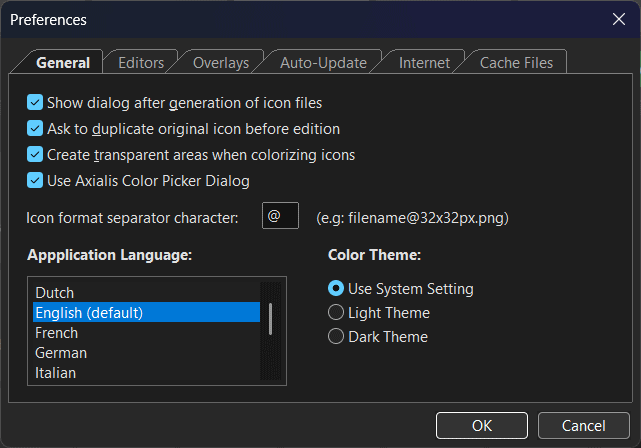
Preferences dialog: General tab.
Show dialog after generation of icon files
When enabled, IconGenerator displays a dialog after creating icon files on disk (for example after running or ). This dialog typically confirms that generation is complete and may provide shortcuts to open the output folder.
Disable this option if you perform repeated batch exports and prefer a “silent” workflow.
Ask to duplicate original icon before edition
Icon sets are updated over time and original icons should usually remain unchanged. When enabled, IconGenerator asks you to duplicate the current icon before opening it in a vector editor. This helps you keep the original icon intact while creating a project-specific variant.
This option works together with:
Create transparent areas when colorizing icons
When enabled, IconGenerator preserves (or creates) transparency when applying a solid color to icons. This is important when you plan to place icons on non-white backgrounds and you want “holes” and negative spaces to remain transparent.
Disable this option only if your target workflow expects a fully filled icon with no transparent areas.
Use Axialis Color Picker Dialog
When enabled, IconGenerator uses the Axialis color picker dialog whenever you choose a color (for example for icon colorization). The Axialis dialog is designed for UI work and can be more convenient than the standard system color picker.
Disable this option to use the operating system’s standard color picker instead.
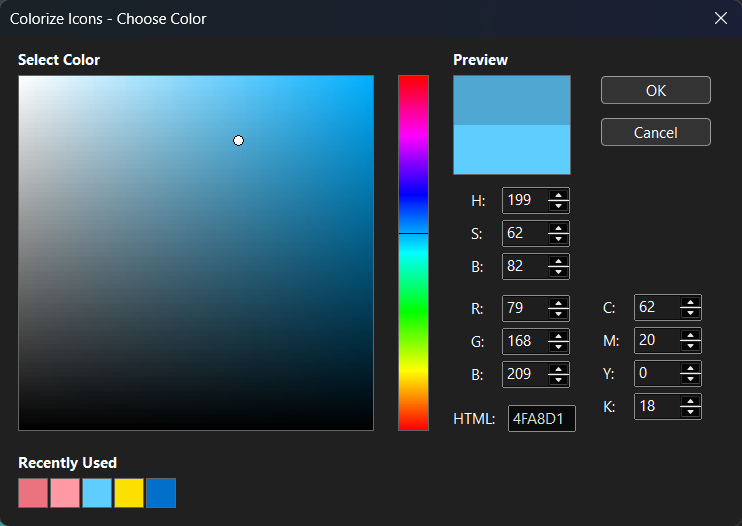
The Axialis Color Picker Dialog
Icon format separator character
When IconGenerator creates bitmap files at multiple sizes, it can add the size information to file names. The separator character defines how that size suffix is attached to the base name.
Example with the default separator @:
filename@32x32px.png
You can change the separator to match your naming conventions, for example _ or -:
filename_32x32px.png
filename-32x32px.png
Application language
Choose the language used for menus, dialogs, and messages. If the interface does not update immediately after selecting a language, restart IconGenerator.
Color theme
Choose how IconGenerator is displayed:
Use System Setting: follow the Windows theme (recommended for most users).
Light Theme: force a light UI theme.
Dark Theme: force a dark UI theme.
Editors
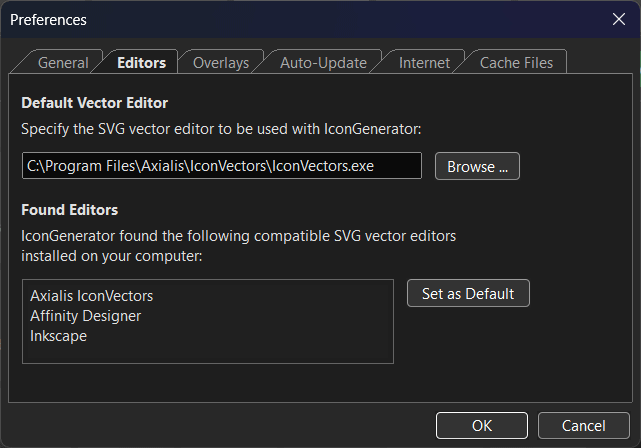
Preferences dialog: Editors tab.
Default vector editor
IconGenerator can open icons in an external SVG vector editor. The Default Vector Editor setting defines which application is launched when you use:
Use Browse… to select an editor executable manually.
Found editors
IconGenerator can detect compatible SVG editors installed on your computer. Detected applications appear in the Found Editors list.
To set one as the default editor:
Select an editor in the list.
Click Set as Default.
Tip
If your editor is not detected automatically, install it first, then restart IconGenerator. If it still does not appear, use Browse… to point to the executable.
Overlays
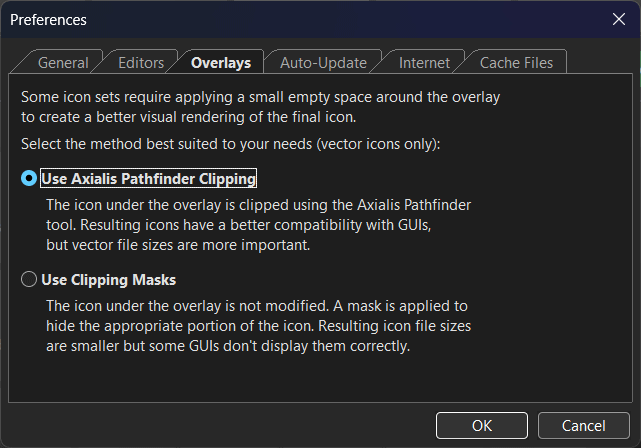
Preferences dialog: Overlays tab.
Some icon sets require a small empty space around the overlay to create a better visual rendering of the final icon. This setting affects vector icons only and controls how the icon is modified under the overlay area.
Use Axialis Pathfinder Clipping
When selected, the icon under the overlay is clipped using the Axialis Pathfinder tool. This produces results that are generally more compatible with UI frameworks and rendering engines, but vector files can be larger.
This option is recommended when your target platform has strict requirements for SVG/XAML compatibility.
Use Clipping Masks
When selected, the icon under the overlay is not modified. Instead, a mask is applied to hide the portion of the icon that should be “cut out” under the overlay.
This can produce smaller vector files, but some UI frameworks may not display masked icons correctly.
Auto-Update
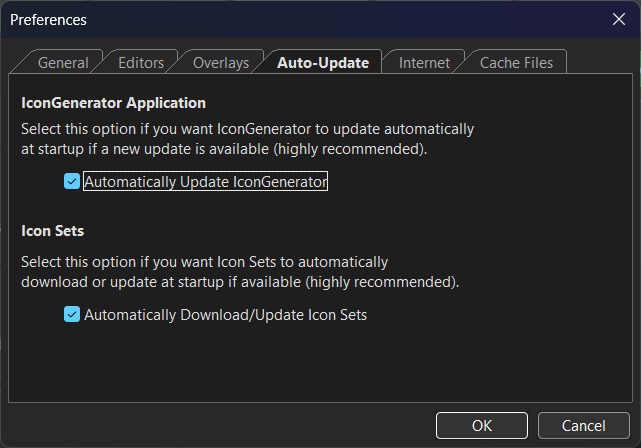
Preferences dialog: Auto-Update tab.
Automatically update IconGenerator
When enabled, IconGenerator checks for updates automatically at startup and updates the application if a new version is available.
This option is recommended so you receive fixes and improvements without manual checks.
Automatically download/update icon sets
When enabled, IconGenerator can automatically download new icon sets (or update installed sets) at startup. This keeps the icon database up to date and ensures you benefit from additions and corrections.
You can also trigger update checks manually:
Internet
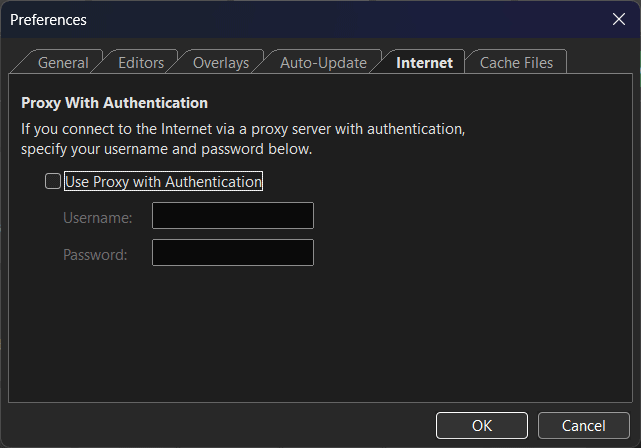
Preferences dialog: Internet tab.
Use proxy with authentication
Enable this option if your computer accesses the Internet through an authenticated proxy server.
When enabled, you can enter:
Username
Password
IconGenerator uses these credentials for Internet features such as application updates and icon set downloads.
Tip
If you do not use a proxy (most home and small office networks), keep this option disabled.
Cache files
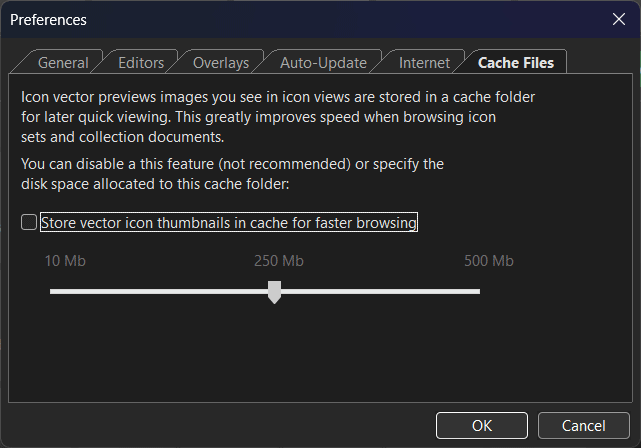
Preferences dialog: Cache Files tab.
Store vector icon thumbnails in cache for faster browsing
IconGenerator generates preview images (thumbnails) for vector icons so they can be displayed quickly in icon views. When caching is enabled, those thumbnails are stored in a cache folder, which can significantly improve browsing speed when exploring icon sets or opening large collections.
Disable caching only if you have very strict disk constraints (not recommended).
Cache size (disk space allocation)
Use the slider to choose the maximum disk space allocated to the thumbnail cache. Typical values range from 10 MB (small cache) to 500 MB (large cache).
A larger cache can improve responsiveness when you browse many icon sets and categories.