Finding icons
IconGenerator includes a Find Icons command to search the icon database by keyword. It helps you locate icons quickly without manually browsing every category.
Open the Find Icons dialog
You can open the search dialog in two ways:
Menu: Ctrl+F
Toolbar: click Find (magnifying glass icon)
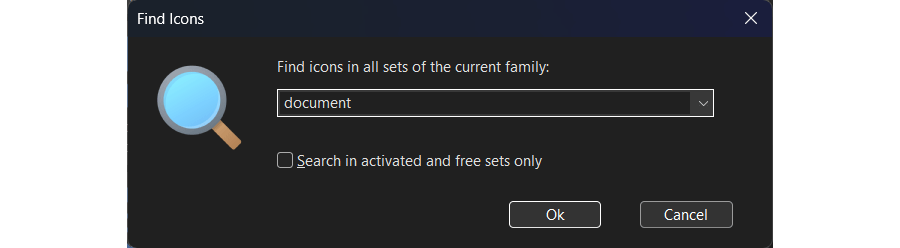
The Find Icons dialog.
How search works
Search scope: current family
The Find dialog searches all sets of the current family.
A family is the top-level group in the Icon Sets tree (for example Axialis Universal Pro, Axialis Line Pro, etc.). Each family contains multiple sets and categories.
This means you can stay in one family and search across all of its sets in one operation.
Tip
To search another family, select that family first in the Icon Sets panel, then run again.
What is searched
Find Icons searches using the icon metadata (typically the icon name/keywords). Search is case-insensitive and works well with partial words.
Examples of useful keywords:
documentfolderarrowwarningcalendarpaste
Multiple words can be used to narrow the results (for example document add).
Search filter: activated and free sets only
Enable Search in activated and free sets only when you want to restrict results to:
icon sets that are free, and/or
icon sets you have activated (licensed)
This is useful to:
reduce the number of results,
avoid icons from sets that are not currently available in your installation,
speed up the search on large families.
Disable this option if you want to explore the full family, even in sets that are not activated yet.
Search history
The search field includes a drop-down arrow. It stores your previous search terms so you can quickly run the same search again without retyping.
Run a search and browse results
Open Ctrl+F.
Enter one or more keywords.
(Optional) enable Search in activated and free sets only.
Click OK.
IconGenerator displays the matching icons in the main icon view so you can browse them like any other icon list.
From there you can:
Click an icon to preview it in the Generated Icons panel.
Double-click an icon to add it to the current collection.
Drag and drop icons into a collection.
Tip
To leave the search results, simply select another category (or another set) in the Icon Sets tree.
Locate an icon in its original set
When a search is executed, all matching icons are displayed together in a special Search Result folder inside the Icon Sets tree.
This temporary folder lets you work with search results just like a normal icon list, without changing the original organization of icon sets.
To find where a specific icon comes from:
Perform a search using Ctrl+F.
In the Search Result folder, right-click the icon you want to locate.
Choose Locate Icon in Set.
IconGenerator automatically:
Opens the icon set that contains the icon.
Selects the icon in its original category.
This is useful when you want to:
understand the context of an icon,
browse related icons in the same set,
remember where the icon is stored for later use.
Work with found icons directly
Icons displayed in the Search Result folder behave exactly like normal icons. You can work with them immediately, without leaving the search results.
From the search results you can:
Select one or more icons.
Apply overlays.
Colorize icons (base icon and overlay).
Preview them in the Generated Icons panel.
Generate icon files directly.
Add them to a collection (double-click, drag & drop, or Add To Collection).
This means you can use the Find feature not only to locate icons, but also as a fast entry point to your complete icon generation workflow.
Tips for better search results
Use simple nouns first
Start with the object name (document, folder, user, mail), then add a qualifier if needed.
Try action words for overlays and states
If you are looking for “action” variations, use verbs or state words such as:
add,remove,deleteok,error,warning,infodownload,upload,edit
Use synonyms
Different icon sets sometimes use different naming conventions. If you don’t find what you want, try synonyms:
trash↔delete↔removemagnify↔search↔findlock↔secure↔security
Keep queries short when exploring
A single keyword produces broader results and helps you discover related icons. Add a second word only when you need to narrow the list.
Troubleshooting
No results
If you get no results:
Try a shorter keyword (
docinstead ofdocument).Try a synonym (
removeinstead ofdelete).Disable Search in activated and free sets only to include all sets of the current family.
Too many results
If too many icons match:
Add a second keyword (for example
document add).Enable Search in activated and free sets only to reduce the scope.