Updates and account
IconGenerator can update both the application and the icon set database (icon families/sets that are downloaded and kept current via Internet). It can also connect to your Axialis account to synchronize licenses and automatically activate the icon sets you own.
Keeping IconGenerator up to date
There are two independent update flows:
- Application updates
Updates to the IconGenerator program itself (new features, fixes, improvements).
- Icon set updates
Updates to icon sets available in the database (new icon sets, new icons, improvements, new styles, etc.).
Automatic updates
IconGenerator can check for updates automatically (typically at startup). This is controlled in Preferences:
F2
Open the Auto-Update tab
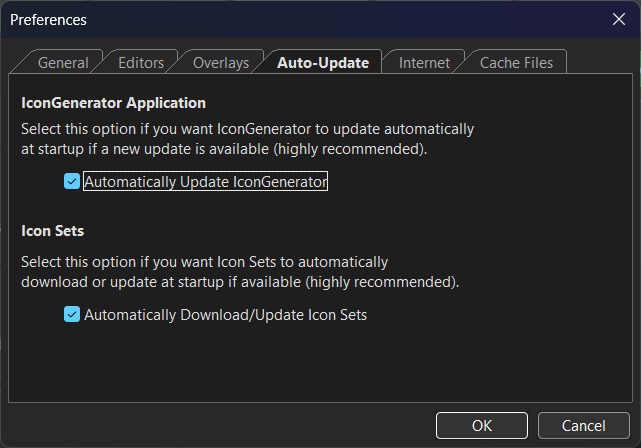
Auto-update options for the application and for icon sets.
Automatically Update IconGenerator
When enabled, IconGenerator checks for a newer version and updates the application automatically when an update is available.
This option is recommended on development machines and design workstations so everyone uses the same features and fixes.
Automatically Download/Update Icon Sets
When enabled, IconGenerator downloads and updates icon sets automatically when updates are available.
This option is also recommended, because it ensures your local icon database stays in sync with the latest content.
Note
If your environment is offline or restricted (corporate proxy/firewall), you can disable automatic updates and perform updates manually when access is available.
Check for updates manually
You can trigger an update check at any time.
From the toolbar
Click the Update button in the main toolbar
Axialis account access
IconGenerator can connect to your Axialis account to manage online features such as license synchronization.
Synchronize licenses
Synchronizing licenses updates IconGenerator with the licenses stored in your Axialis account.
What synchronization does
When you synchronize licenses:
IconGenerator checks your Axialis account for valid licenses.
Icon sets that have a valid license in your account are automatically activated (purchased sets).
When synchronization happens automatically
License synchronization is also performed automatically:
when you sign in to your Axialis account.
Synchronize manually
You can also run synchronization manually:
From the Licenses menu:
Or from the account drop-down (click your name on the right of the toolbar and choose the sync command).
Tip
If you purchased an icon set recently and it still appears unlicensed, run Synchronize Licenses to refresh the activation state.
Internet and proxy settings
IconGenerator needs Internet access for:
application update checks and downloads,
icon set downloads/updates,
account sign-in and license synchronization (if used).
If your network requires a proxy with authentication, configure it in Preferences:
F2
Internet tab
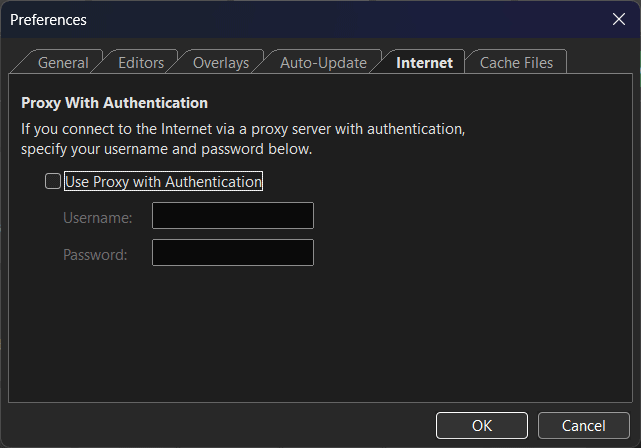
Configure a proxy username/password if required by your network.
Use Proxy with Authentication
Enable Use Proxy with Authentication and enter:
Username
Password
Then retry update checks or license synchronization.
Troubleshooting
Updates do not download / cannot check for updates
Try a manual check: .
Verify your Internet connection.
If you are behind a proxy, configure it in F2 → Internet tab.
If your company firewall filters connections, allow IconGenerator network access.
Licenses do not synchronize / icon sets stay unlicensed
Click your name on the toolbar and confirm you are signed in.
Run .
If you are behind a proxy, configure it in Preferences (Internet tab) and try again.