Licenses and icon set activation
IconGenerator includes multiple icon families and icon sets, each distributed under specific license terms. The license attached to an icon set determines:
whether you can use it in commercial projects,
whether attribution is required,
which export formats are available,
and whether the set is currently activated on your computer.
The most reliable way to understand what you can do with a set is to open the built‑in License Information for that set (see below).
Check an icon set license
You can display license information at any time, either from the main menu or directly from the icon list.
From the icon list context menu
Right‑click an icon (or a selection) in the icon list.
Choose License Information.
A dialog box opens with the license summary and details.
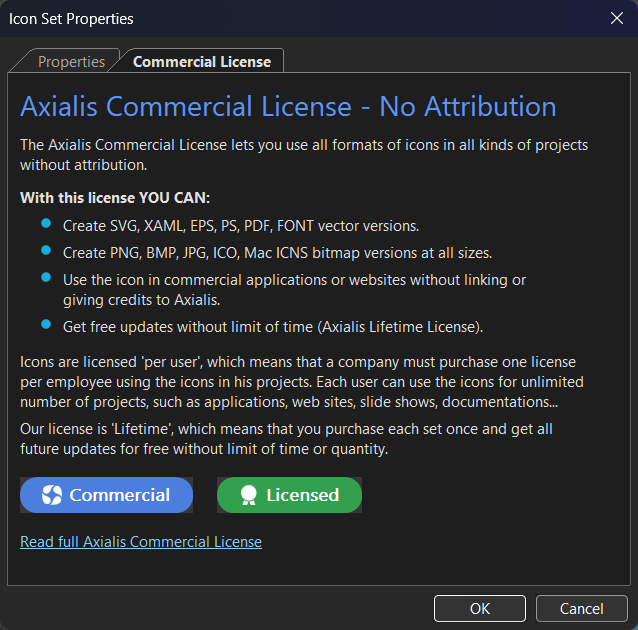
License information for an icon set (example: Axialis Commercial License).
Note
The dialog title and the available tabs may vary depending on the selected icon set and license type.
Understand license status in the UI
IconGenerator shows the current status of the selected icon set in the interface, typically using indicators such as:
- Not licensed
The set is installed/visible but not activated on this computer.
- Licensed
The set is activated and ready to use according to its license terms.
- Free license
The set is available under a free license (terms may still require attribution or impose restrictions).
Important
Even when an icon set is Licensed, you must still comply with its license terms. Use License Information to read the exact conditions (attribution, redistribution rules, etc.).
Activate icon sets automatically (Axialis account)
If you have an Axialis account (Axialis ID) with purchased icon set licenses, activation can be automatic:
Sign in to your Axialis account in IconGenerator.
IconGenerator synchronizes your licenses.
Icon sets that have a valid license in your account are automatically activated.
The license synchronization is performed automatically when you sign in, and it can also be triggered manually (see next section).
For details about account access and update connectivity, see Updates and account.
Synchronize licenses manually
You can refresh activation status at any time (for example after a recent purchase):
You can also access account-related actions by clicking your name on the right side of the toolbar (when signed in). The account drop-down menu may include a synchronization command as well.
Tip
If an icon set appears as not licensed after you purchased it, run Synchronize Licenses.
Activate licenses with a license key
If you received a license key (for example for offline use or a separate purchase channel), you can activate it using:
Follow the on-screen instructions to enter your key and activate the corresponding icon sets.
Buy a license
If you need to purchase a license for additional icon sets, use:
This command opens the purchase flow in your default browser.
Manage activated licenses
Depending on your needs (moving machines, cleaning activations, auditing), IconGenerator provides additional license management tools:
Display activated licenses
This displays the licenses currently activated on your computer.
Deactivate licenses
Use this before moving to another machine if your license terms require freeing an activation slot.
Import and export licenses
These commands are useful to:
back up license information,
transfer license activation data to another computer,
support offline or restricted environments.
Note
The exact file format used for import/export is defined by IconGenerator. Use the built-in dialogs for the recommended workflow.
Commercial license notes (Axialis)
The license dialog for Axialis commercial sets provides a summary of what the license allows. For example, the Axialis Commercial License – No Attribution indicates that you can typically:
export vector formats such as SVG, XAML, EPS, PS, PDF, and font formats,
export bitmap formats such as PNG, BMP, JPG, ICO, and macOS ICNS,
use the icons in commercial applications and websites without attribution.
The dialog also explains licensing concepts such as per-user licensing and lifetime updates for licensed sets.
Always refer to the Read full license link in the dialog for the complete legal text.
Troubleshooting
The set stays “Not licensed”
Make sure you are signed in to your Axialis account (if you purchased the set in your account).
Run .
If you are in a corporate network, check proxy settings in Preferences (Internet tab).
If you use a license key, try .
License information is missing or unclear
Open License Information for the set and use the Read full license link. If you still have doubts, contact Axialis support with the name of the icon set and your license details.