Introduction
IconGenerator turns vector icon sets into ready-to-use resources for software development. Instead of editing icons one by one in a graphics tool, you can:
Select icons from the database.
Optionally apply overlays (to show actions/states like Add, Remove, Info, Error).
Optionally apply colorization (monochrome or shaded, depending on the icon family).
Export the results in one batch, in the formats and sizes you need.

Who is it for?
Developers needing icons for ribbons, toolbars, menus in applications.
UI/UX designers and illustrators who need consistent, pixel-aligned assets.
Teams working on large projects who want a repeatable export process.
Key concepts
- Icon set
A family of icons sharing the same visual style and technical grid (e.g., 16×16, 24×24, 32×32). Icon sets can be Open Source, Free with Attribution, or Commercial (licensed).
- Icon
An individual vector icon within a set (e.g., “archive”, “calendar”, “arrow-right”).
- Overlay
A small symbol applied on top of a base icon to express an action/state (e.g., “plus”, “check”, “warning”). Overlays can be positioned in one of four corners.
- Generated icon
A combination of a base icon and optional overlays/colorization. If you select multiple icons and multiple overlays, IconGenerator generates all possible combinations.
- Collection (AXICP)
A project file that stores a curated list of customized icons (with overlays/colors/variants). Collections help you keep icon choices consistent and allow batch export later.
Quick overview
Axialis IconGenerator is an icon production tool designed for developers, UI designers, and illustrators. It helps you generate complete icon families (multiple sizes and formats) from a large database of professionally-designed icon sets.
All source images in the database are provided in a native vector format and the content can be updated automatically via the Internet. In practice, the workflow is straightforward: you pick one or more base icons, optionally add overlays (to express actions or states), preview the result, then generate the icon files you need.
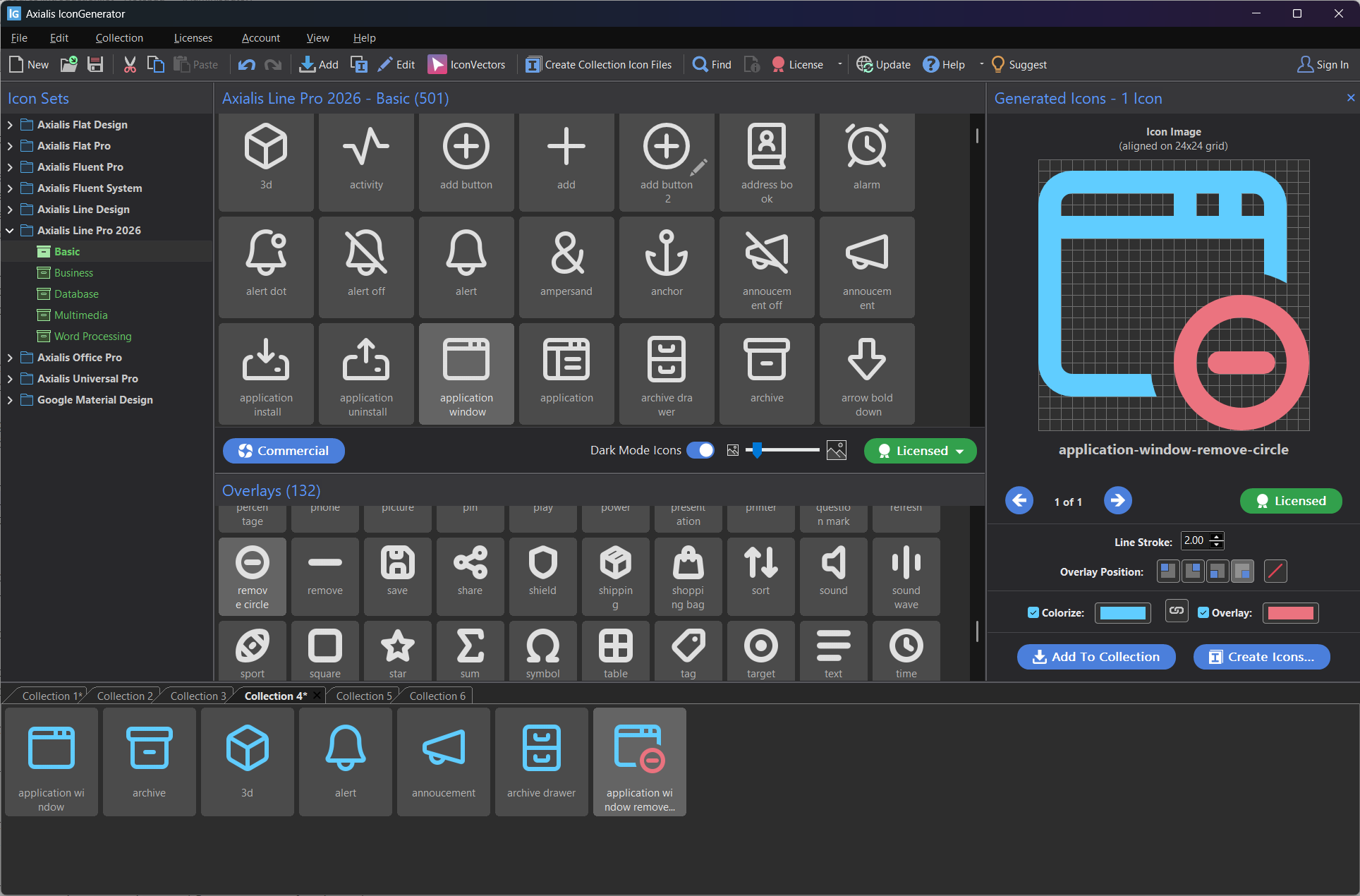
The main window showing, from left to right, the icon sets, the selected icons and overlays, and the generated icons, with the collection files (.axicp) displayed at the bottom
Generate vector and bitmap icons
IconGenerator can export icons in both vector and bitmap formats.
Vector formats: SVG, XAML, PDF, EPS, PS, FONT
Bitmap formats: PNG, BMP, JPEG, ICO, ICNS
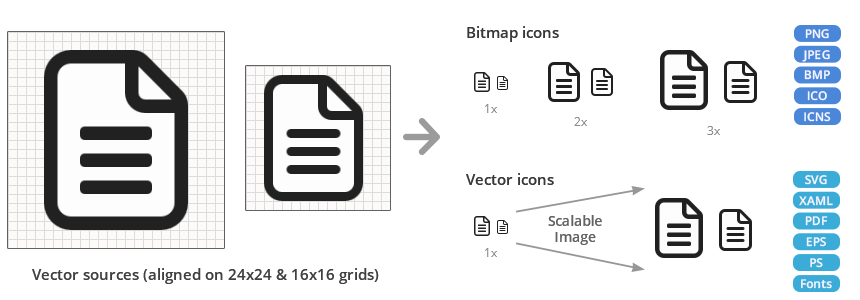
You can work in two complementary ways:
Generate directly from the database (select icons and overlays, then generate files).
Create and manage collections (build a curated list of icons for a project, then generate files from that collection).
A dedicated generation tool allows you to export all required sizes and formats in a single batch operation, which is ideal when you need a consistent set of assets for an application, website, or design system.
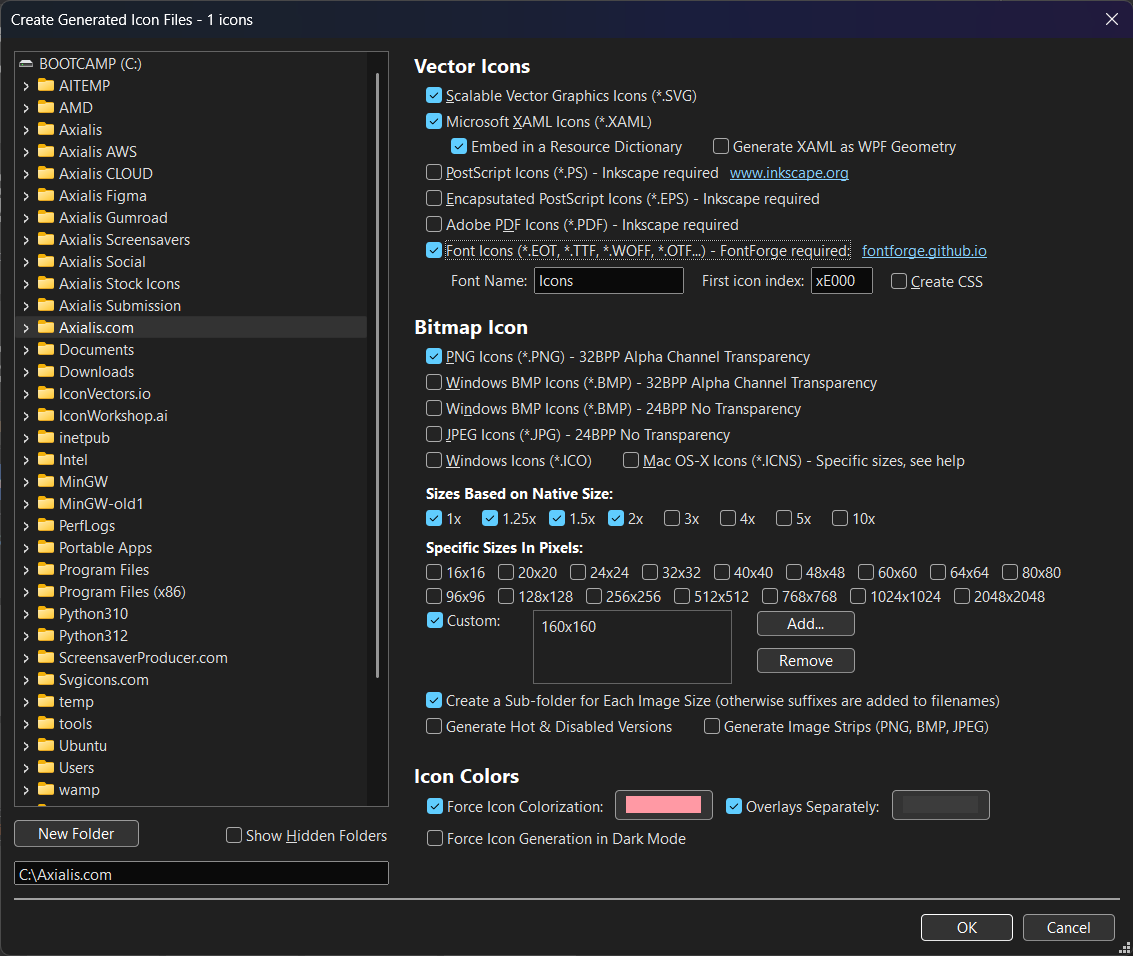
The icon generation dialog box, displaying all available options and the icon file formats that can be generated
Customize icons with overlays
Many icon sets include overlay images. Overlays are small symbols you can combine with a base icon to represent an action or a status, such as Add, Remove, Info, Warning, Error, and more.
In IconGenerator, applying an overlay is a quick operation, and you can place it in one of four positions:

Overlay positions (top-left, top-right, bottom-left, bottom-right)
Colorize your icons
You can colorize icons to match a specific UI theme or brand color. This is especially useful when you want all icons to blend naturally into a modern interface.
You can choose to colorize the icons to match a specific interface color or element state while keeping a consistent visual language across your application. Icons, Overlay Modifiers and Background Fills can be colorized separately. All kinds of combinations are possible:
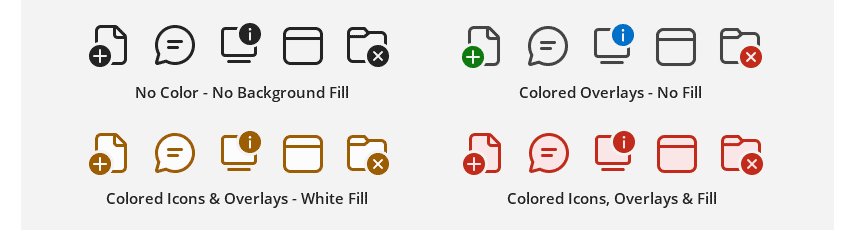
Colorized icon set example
If you need to implement a Dark Mode option in your application interface, you can generate all your icons for that mode in a single click:

Colorized icon set for dark mode
Two icon sizes for ribbons, toolbars, and menus
Some icon sets are designed specifically for application toolbars, menus, and ribbons. In those sets, two sizes are typically provided so you can achieve a crisp, pixel-perfect result in common UI contexts (small icons for menus/toolbars, and larger icons for toolbars/ribbons).
The small icons are not simply scaled down. They are redesigned with fewer details to ensure optimal rendering and pixel-perfect results. For example, the line width remains consistent:

Small and large icon sizes for toolbars, menus, and ribbons
See below a sample application made using Microsoft WPF Ribbon. Two icon sizes are used for primary and secondary commands:

Small and large icon sizes in ribbons
With vector icons, the result stays perfect with hi-dpi display configurations. Here is an example on a 300% hi-dpi screen:
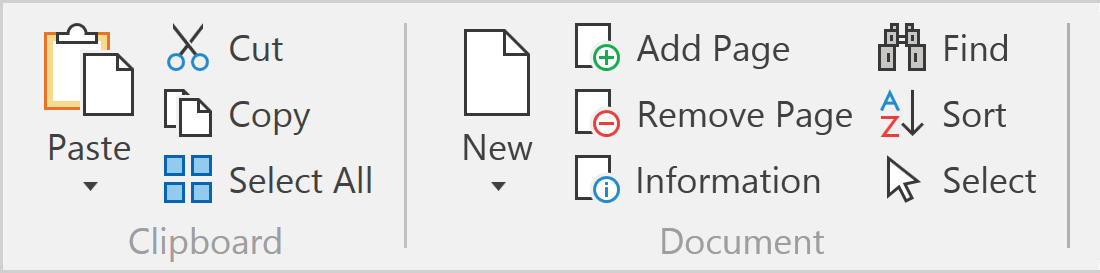
Pixel perfect result with 300% hi-dpi display
Licensing note
IconGenerator itself is free to use, but some icon sets require a license for unrestricted use. Always check the license information attached to the icon set you plan to use.